最简单的静态计算器(不使用JavaScript)
这个方案完全由HTML和CSS构成,计算需要用户自己完成,它主要用于展示计算器的布局和样式。

(图片来源网络,侵删)
特点
- 纯HTML/CSS实现。
- 界面美观,类似真实计算器。
- 无法进行实际计算,仅作为界面展示。
源代码
<!DOCTYPE html>
<html lang="zh-CN">
<head>
    <meta charset="UTF-8">
    <meta name="viewport" content="width=device-width, initial-scale=1.0">简单计算器界面</title>
    <style>
        body {
            display: flex;
            justify-content: center;
            align-items: center;
            height: 100vh;
            margin: 0;
            background-color: #f0f0f0;
            font-family: Arial, sans-serif;
        }
        .calculator {
            border: 2px solid #333;
            border-radius: 10px;
            width: 300px;
            padding: 20px;
            background-color: #222;
            box-shadow: 0 5px 15px rgba(0,0,0,0.3);
        }
        .display {
            background-color: #000;
            color: #fff;
            font-size: 2.5em;
            text-align: right;
            padding: 10px;
            margin-bottom: 15px;
            border-radius: 5px;
            height: 40px;
            overflow: hidden;
        }
        .buttons {
            display: grid;
            grid-template-columns: repeat(4, 1fr);
            gap: 10px;
        }
        button {
            font-size: 1.5em;
            padding: 15px;
            border: none;
            border-radius: 5px;
            cursor: pointer;
            background-color: #555;
            color: white;
            transition: background-color 0.2s;
        }
        button:hover {
            background-color: #777;
        }
        .operator {
            background-color: #f59e0b;
            color: white;
        }
        .operator:hover {
            background-color: #d97706;
        }
        .equals {
            background-color: #10b981;
            color: white;
        }
        .equals:hover {
            background-color: #059669;
        }
        .clear {
            background-color: #ef4444;
            color: white;
        }
        .clear:hover {
            background-color: #dc2626;
        }
    </style>
</head>
<body>
    <div class="calculator">
        <div class="display" id="display">0</div>
        <div class="buttons">
            <button class="clear" onclick="clearDisplay()">C</button>
            <button onclick="appendToDisplay('/')">/</button>
            <button onclick="appendToDisplay('*')">*</button>
            <button onclick="deleteLast()">⌫</button>
            <button onclick="appendToDisplay('7')">7</button>
            <button onclick="appendToDisplay('8')">8</button>
            <button onclick="appendToDisplay('9')">9</button>
            <button class="operator" onclick="appendToDisplay('-')">-</button>
            <button onclick="appendToDisplay('4')">4</button>
            <button onclick="appendToDisplay('5')">5</button>
            <button onclick="appendToDisplay('6')">6</button>
            <button class="operator" onclick="appendToDisplay('+')">+</button>
            <button onclick="appendToDisplay('1')">1</button>
            <button onclick="appendToDisplay('2')">2</button>
            <button onclick="appendToDisplay('3')">3</button>
            <button class="equals" onclick="calculate()" rowspan="2">=</button>
            <button onclick="appendToDisplay('0')" style="grid-column: span 2;">0</button>
            <button onclick="appendToDisplay('.')">.</button>
        </div>
    </div>
    <script>
        // 为了让这个“简单”版本也能运行,我们加上最基础的JS
        let display = document.getElementById('display');
        let currentInput = '0';
        function updateDisplay() {
            display.textContent = currentInput;
        }
        function appendToDisplay(value) {
            if (currentInput === '0' && value !== '.') {
                currentInput = value;
            } else {
                currentInput += value;
            }
            updateDisplay();
        }
        function clearDisplay() {
            currentInput = '0';
            updateDisplay();
        }
        function deleteLast() {
            if (currentInput.length > 1) {
                currentInput = currentInput.slice(0, -1);
            } else {
                currentInput = '0';
            }
            updateDisplay();
        }
        function calculate() {
            try {
                // 使用 eval 函数进行计算(注意:eval 有安全风险,仅用于演示)
                let result = eval(currentInput);
                currentInput = result.toString();
                updateDisplay();
            } catch (error) {
                currentInput = 'Error';
                updateDisplay();
                setTimeout(() => {
                    clearDisplay();
                }, 1500);
            }
        }
    </script>
</body>
</html>
如何使用
- 将以上代码复制到一个文本编辑器中(如 VS Code、记事本)。
- 将文件另存为
calculator.html。 - 用任何浏览器(如 Chrome, Firefox)打开这个文件即可看到效果。
功能完整的动态计算器(推荐)
这个方案使用了HTML、CSS和JavaScript,可以实现真正的加减乘除运算,并包含清除、退格等实用功能。
特点
- 功能完整:支持加减乘除、小数点、清除和退格。
- 逻辑清晰:代码结构简单易懂,适合初学者学习。
- 用户友好:有错误处理,防止非法输入导致程序崩溃。
源代码
<!DOCTYPE html>
<html lang="zh-CN">
<head>
    <meta charset="UTF-8">
    <meta name="viewport" content="width=device-width, initial-scale=1.0">简单计算器</title>
    <style>
        /* 基础样式,让页面居中 */
        body {
            display: flex;
            justify-content: center;
            align-items: center;
            height: 100vh;
            margin: 0;
            background-color: #e9ecef;
            font-family: 'Segoe UI', Tahoma, Geneva, Verdana, sans-serif;
        }
        /* 计算器容器 */
        .calculator {
            border: 1px solid #ccc;
            border-radius: 12px;
            width: 320px;
            padding: 20px;
            background-color: #fff;
            box-shadow: 0 4px 10px rgba(0,0,0,0.1);
        }
        /* 显示屏 */
        .display {
            background-color: #f8f9fa;
            color: #212529;
            font-size: 2em;
            text-align: right;
            padding: 15px;
            margin-bottom: 15px;
            border-radius: 8px;
            border: 1px solid #dee2e6;
            min-height: 40px;
            word-wrap: break-word;
            overflow-wrap: break-word;
        }
        /* 按钮网格布局 */
        .buttons {
            display: grid;
            grid-template-columns: repeat(4, 1fr);
            gap: 10px;
        }
        /* 所有按钮的通用样式 */
        button {
            font-size: 1.2em;
            padding: 15px;
            border: none;
            border-radius: 8px;
            cursor: pointer;
            background-color: #f8f9fa;
            color: #212529;
            transition: background-color 0.2s, transform 0.1s;
            font-weight: bold;
        }
        /* 按钮悬停效果 */
        button:hover {
            background-color: #e9ecef;
        }
        /* 按钮点击效果 */
        button:active {
            transform: scale(0.98);
        }
        /* 运算符按钮样式 */
        .operator {
            background-color: #ffc107;
            color: #212529;
        }
        .operator:hover {
            background-color: #e0a800;
        }
        /* 等号按钮样式 */
        .equals {
            background-color: #28a745;
            color: white;
            grid-row: span 2; /* 让等号按钮跨两行 */
        }
        .equals:hover {
            background-color: #218838;
        }
        /* 清除按钮样式 */
        .clear {
            background-color: #dc3545;
            color: white;
        }
        .clear:hover {
            background-color: #c82333;
        }
    </style>
</head>
<body>
    <div class="calculator">
        <div class="display" id="display">0</div>
        <div class="buttons">
            <button class="clear" onclick="clearDisplay()">C</button>
            <button onclick="appendToDisplay('/')">/</button>
            <button onclick="appendToDisplay('*')">*</button>
            <button class="operator" onclick="appendToDisplay('-')">-</button>
            <button onclick="appendToDisplay('7')">7</button>
            <button onclick="appendToDisplay('8')">8</button>
            <button onclick="appendToDisplay('9')">9</button>
            <button class="operator" onclick="appendToDisplay('+')">+</button>
            <button onclick="appendToDisplay('4')">4</button>
            <button onclick="appendToDisplay('5')">5</button>
            <button onclick="appendToDisplay('6')">6</button>
            <button class="equals" onclick="calculate()">=</button>
            <button onclick="appendToDisplay('1')">1</button>
            <button onclick="appendToDisplay('2')">2</button>
            <button onclick="appendToDisplay('3')">3</button>
            <button onclick="appendToDisplay('0')" style="grid-column: span 2;">0</button>
            <button onclick="appendToDisplay('.')">.</button>
        </div>
    </div>
    <script>
        // 获取显示区域
        const display = document.getElementById('display');
        let currentInput = '0'; // 当前输入的表达式
        let shouldResetDisplay = false; // 标志是否需要重置显示
        // 更新显示内容
        function updateDisplay() {
            display.textContent = currentInput;
        }
        // 向显示区域追加内容
        function appendToDisplay(value) {
            // 如果需要重置显示(例如刚按完等号),则清空当前输入
            if (shouldResetDisplay) {
                currentInput = '';
                shouldResetDisplay = false;
            }
            // 如果当前显示是 "0" 且输入的不是小数点,则替换掉 "0"
            if (currentInput === '0' && value !== '.') {
                currentInput = value;
            } else {
                // 防止出现多个小数点
                if (value === '.' && currentInput.includes('.')) {
                    return;
                }
                currentInput += value;
            }
            updateDisplay();
        }
        // 清除显示
        function clearDisplay() {
            currentInput = '0';
            shouldResetDisplay = false;
            updateDisplay();
        }
        // 计算结果
        function calculate() {
            try {
                // 使用 eval 函数计算表达式(注意:在生产环境中,eval 有安全风险,这里仅作演示)
                const result = eval(currentInput);
                // 将结果格式化,避免出现过长的小数
                currentInput = parseFloat(result.toFixed(8)).toString();
                shouldResetDisplay = true; // 下次输入时重置显示
                updateDisplay();
            } catch (error) {
                // 如果表达式无效,显示错误
                currentInput = 'Error';
                shouldResetDisplay = true;
                updateDisplay();
                // 1.5秒后自动清除错误
                setTimeout(() => {
                    clearDisplay();
                }, 1500);
            }
        }
    </script>
</body>
</html>
代码解释
-
HTML (
<body>部分)<div class="calculator">: 整个计算器的容器。<div class="display" id="display">0</div>: 显示结果的屏幕,id="display"用于让 JavaScript 找到它。<div class="buttons">: 按钮的容器,使用grid布局来排列按钮。<button>: 每一个按钮。onclick="...": 当按钮被点击时,会执行引号内的 JavaScript 函数。class="operator",class="equals",class="clear": 为不同类型的按钮添加不同的CSS样式。
-
CSS (
<style>部分)body: 使用flex布局将计算器居中在屏幕上。.calculator: 设置计算器的宽度、边框、背景色和阴影,使其看起来像一个真实的设备。.display: 设置显示屏的样式,如背景、字体、对齐方式等。.buttons: 使用display: grid;创建一个4列的网格,按钮会自动排列。button: 定义所有按钮的通用样式,如大小、颜色、圆角。.operator,.equals,.clear: 通过覆盖通用样式,为特定按钮设置不同的颜色和悬停效果。
-
JavaScript (
<script>部分)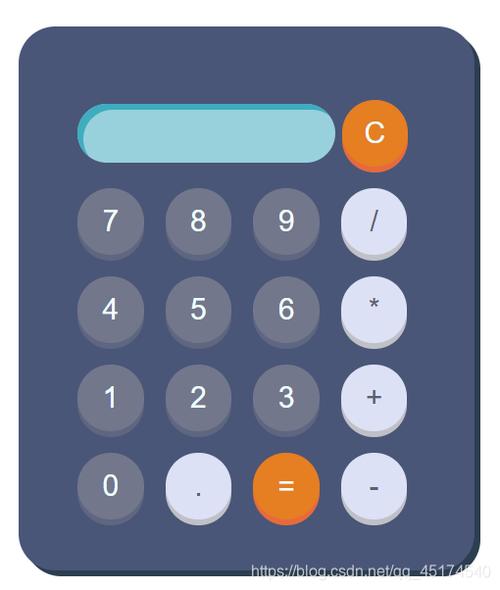 (图片来源网络,侵删)
const display = document.getElementById('display');: 获取显示屏的DOM元素。let currentInput = '0';: 存储当前输入的数字或表达式。appendToDisplay(value): 当数字或运算符按钮被点击时调用,它会将点击的值追加到currentInput,并更新显示屏。clearDisplay(): 当 "C" (清除) 按钮被点击时调用,将currentInput重置为 "0"。calculate(): 当 "=" (等号) 按钮被点击时调用。try...catch: 用于捕获计算错误(用户输入1++)。eval(currentInput): JavaScript 的一个函数,它会将字符串作为代码来执行,这里是实现计算功能的核心。result.toFixed(8): 处理计算结果,避免出现像1 + 0.2 = 0.30000000000000004这样的精度问题。shouldResetDisplay: 这是一个标志位,当计算出结果后,它被设为true,这样下一次点击数字按钮时,会先清空结果再输入新数字,符合计算器的使用习惯。
如何选择?
- 如果你只是想学习HTML和CSS的基本布局,方案一(静态版)就足够了。
- 如果你想要一个真正能用的、功能完整的计算器,并且想了解前端交互的基本原理,方案二(动态版)是最佳选择,它也是实际项目中更常见的写法。

(图片来源网络,侵删)


