如何使用这些源码?
- 创建文件:在您的电脑上创建一个文件夹,然后在里面创建10个新的文本文件。
- 重命名:将这10个文件分别命名为
example1.html,example2.html, ...,example10.html。 - 复制粘贴:将下方对应的源码复制到对应的文件中。
- 保存:确保所有文件都保存为
.html格式。 - 运行:用任意现代浏览器(如 Chrome, Firefox, Edge)打开任意一个
.html文件即可看到效果。
示例 1: 现代响应式个人主页
这是一个简洁、专业的个人主页,带有导航栏、个人介绍、技能展示和联系表单,完全响应式,在手机和电脑上都有良好体验。
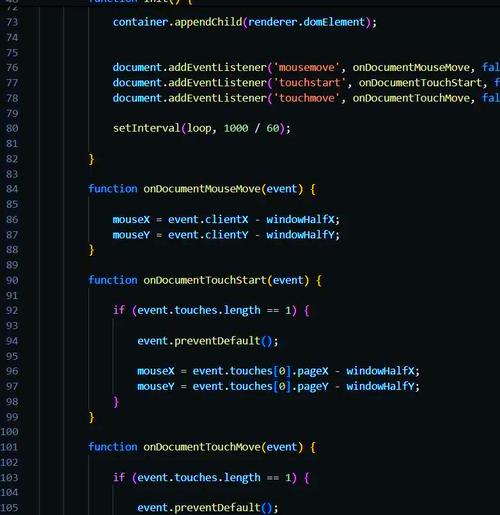
(图片来源网络,侵删)
<!-- example1.html -->
<!DOCTYPE html>
<html lang="zh-CN">
<head>
<meta charset="UTF-8">
<meta name="viewport" content="width=device-width, initial-scale=1.0">张三的个人主页</title>
<style>
* { box-sizing: border-box; margin: 0; padding: 0; font-family: 'Arial', sans-serif; }
body { background-color: #f4f4f4; color: #333; line-height: 1.6; }
.container { width: 80%; margin: auto; overflow: hidden; }
header { background: #333; color: #fff; padding: 1rem 0; text-align: center; }
header h1 { font-size: 2.5rem; }
nav { background: #444; }
nav ul { list-style: none; display: flex; justify-content: center; }
nav ul li a { color: #fff; text-decoration: none; padding: 1rem; display: block; }
nav ul li a:hover { background: #555; }
.main-content { padding: 2rem 0; }
.section { margin-bottom: 2rem; background: #fff; padding: 2rem; border-radius: 5px; box-shadow: 0 0 10px rgba(0,0,0,0.1); }
.skills { display: flex; flex-wrap: wrap; gap: 1rem; }
.skill-tag { background: #007bff; color: white; padding: 0.5rem 1rem; border-radius: 20px; }
footer { background: #333; color: #fff; text-align: center; padding: 1rem 0; margin-top: 2rem; }
@media (max-width: 768px) {
.container { width: 95%; }
nav ul { flex-direction: column; }
}
</style>
</head>
<body>
<header>
<h1>张三</h1>
<p>前端开发工程师 | UI/UX 设计爱好者</p>
</header>
<nav>
<ul>
<li><a href="#about">关于我</a></li>
<li><a href="#skills">技能</a></li>
<li><a href="#contact">联系我</a></li>
</ul>
</nav>
<div class="container">
<div class="main-content">
<section id="about" class="section">
<h2>关于我</h2>
<p>你好!我是一名充满激情的前端开发工程师,拥有5年的行业经验,我专注于创建美观、快速且用户友好的Web应用程序,我相信好的代码不仅要能运行,更要易于维护和扩展。</p>
</section>
<section id="skills" class="section">
<h2>专业技能</h2>
<div class="skills">
<span class="skill-tag">HTML5</span>
<span class="skill-tag">CSS3</span>
<span class="skill-tag">JavaScript (ES6+)</span>
<span class="skill-tag">React</span>
<span class="skill-tag">Vue.js</span>
<span class="skill-tag">Node.js</span>
<span class="skill-tag">Git</span>
<span class="skill-tag">响应式设计</span>
</div>
</section>
<section id="contact" class="section">
<h2>联系我</h2>
<form>
<p>邮箱: zhangsan@example.com</p>
<p>电话: 138-xxxx-xxxx</p>
</form>
</section>
</div>
</div>
<footer>
<p>© 2025 张三. All Rights Reserved.</p>
</footer>
</body>
</html>
示例 2: 动态待办事项列表
一个功能完整的待办事项应用,可以添加、删除、标记完成,并使用 LocalStorage 保存数据,刷新页面后数据不会丢失。
<!-- example2.html -->
<!DOCTYPE html>
<html lang="zh-CN">
<head>
    <meta charset="UTF-8">
    <meta name="viewport" content="width=device-width, initial-scale=1.0">待办事项列表</title>
    <style>
        body { font-family: -apple-system, BlinkMacSystemFont, 'Segoe UI', Roboto, Helvetica, Arial, sans-serif; background: #e9ecef; display: flex; justify-content: center; align-items: center; height: 100vh; }
        .todo-container { background: white; width: 100%; max-width: 500px; padding: 2rem; border-radius: 10px; box-shadow: 0 4px 15px rgba(0,0,0,0.1); }
        h1 { text-align: center; color: #333; }
        .input-container { display: flex; margin-bottom: 1.5rem; }
        #todo-input { flex-grow: 1; padding: 0.8rem; border: 1px solid #ddd; border-radius: 5px; font-size: 1rem; }
        #add-btn { padding: 0.8rem 1.5rem; margin-left: 0.5rem; background: #28a745; color: white; border: none; border-radius: 5px; cursor: pointer; }
        #add-btn:hover { background: #218838; }
        ul { list-style: none; padding: 0; }
        li { display: flex; align-items: center; justify-content: space-between; padding: 1rem; border-bottom: 1px solid #eee; transition: background 0.2s; }
        li.completed { text-decoration: line-through; color: #aaa; }
        li button { background: #dc3545; color: white; border: none; padding: 0.5rem 1rem; border-radius: 5px; cursor: pointer; }
        li button:hover { background: #c82333; }
    </style>
</head>
<body>
    <div class="todo-container">
        <h1>我的待办事项</h1>
        <div class="input-container">
            <input type="text" id="todo-input" placeholder="输入新的待办事项...">
            <button id="add-btn">添加</button>
        </div>
        <ul id="todo-list"></ul>
    </div>
    <script>
        document.addEventListener('DOMContentLoaded', () => {
            const todoInput = document.getElementById('todo-input');
            const addBtn = document.getElementById('add-btn');
            const todoList = document.getElementById('todo-list');
            // 从 LocalStorage 加载待办事项
            let todos = JSON.parse(localStorage.getItem('todos')) || [];
            // 渲染待办事项列表
            function renderTodos() {
                todoList.innerHTML = '';
                todos.forEach((todo, index) => {
                    const li = document.createElement('li');
                    if (todo.completed) li.classList.add('completed');
                    li.innerHTML = `
                        <span>${todo.text}</span>
                        <button onclick="deleteTodo(${index})">删除</button>
                    `;
                    li.addEventListener('click', (e) => {
                        if (e.target.tagName !== 'BUTTON') {
                            toggleTodo(index);
                        }
                    });
                    todoList.appendChild(li);
                });
                saveTodos();
            }
            // 添加新待办事项
            addBtn.addEventListener('click', () => {
                const text = todoInput.value.trim();
                if (text) {
                    todos.push({ text, completed: false });
                    todoInput.value = '';
                    renderTodos();
                }
            });
            // 按 Enter 键添加
            todoInput.addEventListener('keypress', (e) => {
                if (e.key === 'Enter') {
                    addBtn.click();
                }
            });
            // 切换完成状态
            window.toggleTodo = function(index) {
                todos[index].completed = !todos[index].completed;
                renderTodos();
            };
            // 删除待办事项
            window.deleteTodo = function(index) {
                todos.splice(index, 1);
                renderTodos();
            };
            // 保存到 LocalStorage
            function saveTodos() {
                localStorage.setItem('todos', JSON.stringify(todos));
            }
            // 初始渲染
            renderTodos();
        });
    </script>
</body>
</html>
示例 3: 产品展示卡片
一个用于展示产品的网格布局卡片,带有悬停效果和简单的模态框详情。
<!-- example3.html -->
<!DOCTYPE html>
<html lang="zh-CN">
<head>
<meta charset="UTF-8">
<meta name="viewport" content="width=device-width, initial-scale=1.0">产品展示</title>
<style>
body { font-family: 'Segoe UI', Tahoma, Geneva, Verdana, sans-serif; background: #f8f9fa; padding: 2rem; }
.products-grid { display: grid; grid-template-columns: repeat(auto-fit, minmax(280px, 1fr)); gap: 2rem; max-width: 1200px; margin: auto; }
.product-card { background: white; border-radius: 10px; overflow: hidden; box-shadow: 0 4px 6px rgba(0,0,0,0.1); transition: transform 0.3s, box-shadow 0.3s; cursor: pointer; }
.product-card:hover { transform: translateY(-10px); box-shadow: 0 10px 20px rgba(0,0,0,0.15); }
.product-image { width: 100%; height: 200px; background-size: cover; background-position: center; }
.product-info { padding: 1.5rem; }
.product-title { font-size: 1.25rem; font-weight: bold; margin-bottom: 0.5rem; }
.product-description { color: #666; margin-bottom: 1rem; }
.product-price { font-size: 1.5rem; color: #28a745; font-weight: bold; }
.modal { display: none; position: fixed; z-index: 1000; left: 0; top: 0; width: 100%; height: 100%; background-color: rgba(0,0,0,0.5); }
.modal-content { background-color: white; margin: 10% auto; padding: 2rem; border-radius: 10px; width: 80%; max-width: 600px; }
.close { color: #aaa; float: right; font-size: 28px; font-weight: bold; cursor: pointer; }
.close:hover { color: black; }
</style>
</head>
<body>
<h1 style="text-align: center; margin-bottom: 2rem;">我们的产品</h1>
<div class="products-grid">
<div class="product-card" onclick="openModal('智能手表 Pro', '最新款智能手表,支持心率监测、GPS定位和50米防水。', '¥1299')">
<div class="product-image" style="background-image: url('https://via.placeholder.com/400x200?text=Smartwatch+Pro');"></div>
<div class="product-info">
<h3 class="product-title">智能手表 Pro</h3>
<p class="product-description">功能强大的智能穿戴设备</p>
<p class="product-price">¥1299</p>
</div>
</div>
<div class="product-card" onclick="openModal('无线耳机 Max', '主动降噪,高保真音质,长达30小时续航。', '¥899')">
<div class="product-image" style="background-image: url('https://via.placeholder.com/400x200?text=Wireless+Earbuds');"></div>
<div class="product-info">
<h3 class="product-title">无线耳机 Max</h3>
<p class="product-description">沉浸式音乐体验</p>
<p class="product-price">¥899</p>
</div>
</div>
<div class="product-card" onclick="openModal('便携充电宝', '20000mAh大容量,支持快充协议,轻薄便携。', '¥199')">
<div class="product-image" style="background-image: url('https://via.placeholder.com/400x200?text=Power+Bank');"></div>
<div class="product-info">
<h3 class="product-title">便携充电宝</h3>
<p class="product-description">随时随地,电力十足</p>
<p class="product-price">¥199</p>
</div>
</div>
</div>
<!-- 模态框 -->
<div id="productModal" class="modal">
<div class="modal-content">
<span class="close" onclick="closeModal()">×</span>
<h2 id="modal-title"></h2>
<p id="modal-description"></p>
<p id="modal-price"></p>
</div>
</div>
<script>
function openModal(title, description, price) {
document.getElementById('modal-title').innerText = title;
document.getElementById('modal-description').innerText = description;
document.getElementById('modal-price').innerText = price;
document.getElementById('productModal').style.display = 'block';
}
function closeModal() {
document.getElementById('productModal').style.display = 'none';
}
window.onclick = function(event) {
const modal = document.getElementById('productModal');
if (event.target == modal) {
closeModal();
}
}
</script>
</body>
</html>
示例 4: 交互式SVG动画
使用SVG和CSS创建一个简单的、可交互的加载动画和路径动画。
<!-- example4.html -->
<!DOCTYPE html>
<html lang="zh-CN">
<head>
    <meta charset="UTF-8">
    <meta name="viewport" content="width=device-width, initial-scale=1.0">SVG动画示例</title>
    <style>
        body { display: flex; flex-direction: column; justify-content: center; align-items: center; height: 100vh; background: #f0f0f0; }
        h1 { margin-bottom: 2rem; }
        /* 加载动画 */
        .loader {
            width: 50px;
            height: 50px;
            border: 5px solid #f3f3f3;
            border-top: 5px solid #3498db;
            border-radius: 50%;
            animation: spin 1s linear infinite;
        }
        @keyframes spin {
            0% { transform: rotate(0deg); }
            100% { transform: rotate(360deg); }
        }
        /* SVG路径动画 */
        .svg-container { margin-top: 3rem; }
        svg { width: 300px; height: 200px; }
        .path {
            fill: none;
            stroke: #e74c3c;
            stroke-width: 4;
            stroke-dasharray: 1000;
            stroke-dashoffset: 1000;
            animation: draw 3s ease-in-out forwards;
        }
        @keyframes draw {
            to {
                stroke-dashoffset: 0;
            }
        }
        .circle {
            fill: #2ecc71;
            animation: pulse 2s ease-in-out infinite;
        }
        @keyframes pulse {
            0%, 100% { transform: scale(1); }
            50% { transform: scale(1.2); }
        }
    </style>
</head>
<body>
    <h1>SVG动画示例</h1>
    <div class="loader"></div>
    <div class="svg-container">
        <svg viewBox="0 0 300 200">
            <!-- 路径动画 -->
            <path class="path" d="M 20,100 Q 150,20 280,100" />
            <!-- 圆形动画 -->
            <circle class="circle" cx="150" cy="100" r="15" />
        </svg>
    </div>
</body>
</html>
示例 5: 在线计算器
一个功能齐全的桌面风格计算器,支持基本四则运算。
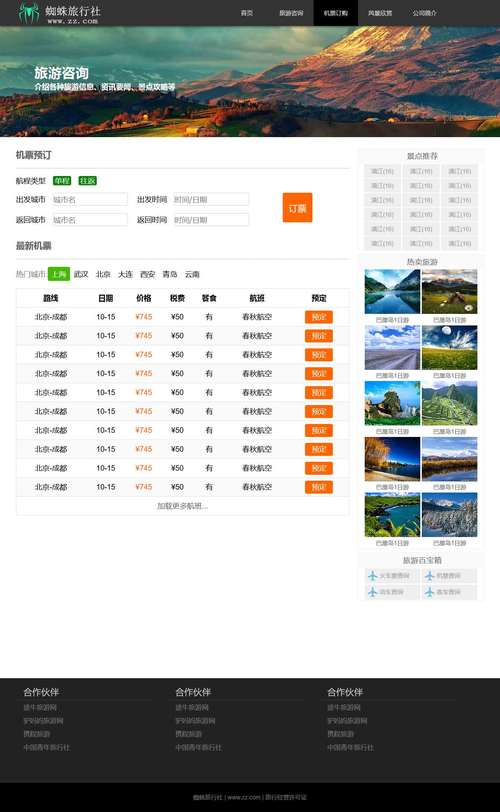
(图片来源网络,侵删)
<!-- example5.html -->
<!DOCTYPE html>
<html lang="zh-CN">
<head>
    <meta charset="UTF-8">
    <meta name="viewport" content="width=device-width, initial-scale=1.0">在线计算器</title>
    <style>
        body { display: flex; justify-content: center; align-items: center; height: 100vh; background: #222; font-family: 'Courier New', Courier, monospace; }
        .calculator { background: #333; border-radius: 10px; padding: 20px; box-shadow: 0 0 20px rgba(0,0,0,0.5); }
        .display { background: #000; color: #0f0; font-size: 2.5rem; padding: 15px; text-align: right; margin-bottom: 15px; border-radius: 5px; min-height: 50px; }
        .buttons { display: grid; grid-template-columns: repeat(4, 1fr); gap: 10px; }
        button { background: #555; color: white; border: none; border-radius: 5px; padding: 20px; font-size: 1.5rem; cursor: pointer; transition: background 0.2s; }
        button:hover { background: #666; }
        button:active { background: #777; }
        .operator { background: #ff9500; }
        .operator:hover { background: #ffb143; }
        .clear { background: #d9534f; }
        .clear:hover { background: #e17766; }
    </style>
</head>
<body>
    <div class="calculator">
        <div class="display" id="display">0</div>
        <div class="buttons">
            <button class="clear" onclick="clearDisplay()">C</button>
            <button onclick="appendToDisplay('(')">(</button>
            <button onclick="appendToDisplay(')')">)</button>
            <button class="operator" onclick="appendToDisplay('/')">/</button>
            <button onclick="appendToDisplay('7')">7</button>
            <button onclick="appendToDisplay('8')">8</button>
            <button onclick="appendToDisplay('9')">9</button>
            <button class="operator" onclick="appendToDisplay('*')">*</button>
            <button onclick="appendToDisplay('4')">4</button>
            <button onclick="appendToDisplay('5')">5</button>
            <button onclick="appendToDisplay('6')">6</button>
            <button class="operator" onclick="appendToDisplay('-')">-</button>
            <button onclick="appendToDisplay('1')">1</button>
            <button onclick="appendToDisplay('2')">2</button>
            <button onclick="appendToDisplay('3')">3</button>
            <button class="operator" onclick="appendToDisplay('+')">+</button>
            <button onclick="appendToDisplay('0')">0</button>
            <button onclick="appendToDisplay('.')">.</button>
            <button onclick="calculate()">=</button>
            <button onclick="backspace()">⌫</button>
        </div>
    </div>
    <script>
        let display = document.getElementById('display');
        let currentInput = '0';
        let shouldResetDisplay = false;
        function updateDisplay() {
            display.textContent = currentInput;
        }
        function clearDisplay() {
            currentInput = '0';
            updateDisplay();
        }
        function appendToDisplay(value) {
            if (shouldResetDisplay) {
                currentInput = '0';
                shouldResetDisplay = false;
            }
            if (currentInput === '0' && value !== '.') {
                currentInput = value;
            } else {
                currentInput += value;
            }
            updateDisplay();
        }
        function backspace() {
            if (currentInput.length > 1) {
                currentInput = currentInput.slice(0, -1);
            } else {
                currentInput = '0';
            }
            updateDisplay();
        }
        function calculate() {
            try {
                // 使用 Function 构造器来安全地计算表达式
                const result = Function('"use strict"; return (' + currentInput + ')')();
                currentInput = result.toString();
                shouldResetDisplay = true;
                updateDisplay();
            } catch (error) {
                currentInput = 'Error';
                shouldResetDisplay = true;
                updateDisplay();
            }
        }
    </script>
</body>
</html>
示例 6: 纯CSS绘制的太阳系
这是一个非常酷炫的示例,仅使用HTML和CSS(通过3D变换)创建一个旋转的太阳系模型。
<!-- example6.html -->
<!DOCTYPE html>
<html lang="zh-CN">
<head>
    <meta charset="UTF-8">
    <meta name="viewport" content="width=device-width, initial-scale=1.0">CSS太阳系</title>
    <style>
        body { background: #000; color: #fff; overflow: hidden; display: flex; justify-content: center; align-items: center; height: 100vh; }
        .solar-system { width: 500px; height: 500px; position: relative; transform-style: preserve-3d; animation: rotate 60s infinite linear; }
        .orbit { position: absolute; border: 1px solid rgba(255, 255, 255, 0.2); border-radius: 50%; top: 50%; left: 50%; transform: translate(-50%, -50%); }
        .planet { position: absolute; border-radius: 50%; top: 0; left: 50%; transform: translateX(-50%); }
        .sun { width: 80px; height: 80px; background: radial-gradient(circle, #ffeb3b, #ff9800); position: absolute; top: 50%; left: 50%; transform: translate(-50%, -50%); border-radius: 50%; box-shadow: 0 0 60px #ff9800; }
        /* 水星 */
        .mercury-orbit { width: 120px; height: 120px; }
        .mercury { width: 10px; height: 10px; background: #9e9e9e; animation: counter-rotate 10s infinite linear; }
        /* 金星 */
        .venus-orbit { width: 180px; height: 180px; }
        .venus { width: 18px; height: 18px; background: #ffeb3b; animation: counter-rotate 15s infinite linear; }
        /* 地球 */
        .earth-orbit { width: 250px; height: 250px; }
        .earth { width: 20px; height: 20px; background: radial-gradient(circle at 30% 30%, #2196f3, #1565c0); animation: counter-rotate 20s infinite linear; }
        /* 火星 */
        .mars-orbit { width: 320px; height: 320px; }
        .mars { width: 15px; height: 15px; background: #f44336; animation: counter-rotate 25s infinite linear; }
        /* 木星 */
        .jupiter-orbit { width: 400px; height: 400px; }
        .jupiter { width: 40px; height: 40px; background: radial-gradient(circle, #ff9800, #e65100); animation: counter-rotate 35s infinite linear; }
        /* 土星 */
        .saturn-orbit { width: 480px; height: 480px; }
        .saturn { width: 35px; height: 35px; background: #ffeb3b; animation: counter-rotate 40s infinite linear; position: relative; }
        .saturn::after { content: ''; position: absolute; width: 60px; height: 10px; background: rgba(255, 235, 59, 0.5); border-radius: 50%; top: 50%; left: 50%; transform: translate(-50%, -50%); }
        @keyframes rotate {
            from { transform: rotateY(0deg); }
            to { transform: rotateY(360deg); }
        }
        @keyframes counter-rotate {
            from { transform: translateX(-50%) rotate(0deg); }
            to { transform: translateX(-50%) rotate(-360deg); }
        }
    </style>
</head>
<body>
    <div class="solar-system">
        <div class="sun"></div>
        <div class="orbit mercury-orbit">
            <div class="planet mercury"></div>
        </div>
        <div class="orbit venus-orbit">
            <div class="planet venus"></div>
        </div>
        <div class="orbit earth-orbit">
            <div class="planet earth"></div>
        </div>
        <div class="orbit mars-orbit">
            <div class="planet mars"></div>
        </div>
        <div class="orbit jupiter-orbit">
            <div class="planet jupiter"></div>
        </div>
        <div class="orbit saturn-orbit">
            <div class="planet saturn"></div>
        </div>
    </div>
</body>
</html>
示例 7: 拖放式文件上传区域
一个现代化的文件上传界面,支持点击选择和拖放文件,并显示已选文件列表。
<!-- example7.html -->
<!DOCTYPE html>
<html lang="zh-CN">
<head>
    <meta charset="UTF-8">
    <meta name="viewport" content="width=device-width, initial-scale=1.0">拖放文件上传</title>
    <style>
        body { font-family: -apple-system, BlinkMacSystemFont, 'Segoe UI', Roboto, sans-serif; background: #f0f2f5; display: flex; justify-content: center; align-items: center; height: 100vh; }
        .upload-container { width: 100%; max-width: 600px; padding: 2rem; }
        .drop-zone { border: 2px dashed #007bff; border-radius: 10px; padding: 3rem; text-align: center; background: #f8f9fa; transition: background 0.3s, border-color 0.3s; cursor: pointer; }
        .drop-zone.dragover { background: #e3f2fd; border-color: #0277bd; }
        .drop-zone p { font-size: 1.2rem; color: #6c757d; margin-bottom: 1rem; }
        .file-input { display: none; }
        .upload-btn { background: #007bff; color: white; border: none; padding: 0.8rem 2rem; border-radius: 5px; font-size: 1rem; cursor: pointer; transition: background 0.3s; }
        .upload-btn:hover { background: #0056b3; }
        .file-list { margin-top: 2rem; }
        .file-item { display: flex; justify-content: space-between; align-items: center; padding: 1rem; background: white; border-radius: 5px; margin-bottom: 0.5rem; box-shadow: 0 2px 4px rgba(0,0,0,0.1); }
        .file-name { font-weight: 500; }
        .file-size { color: #6c757d; font-size: 0.9rem; }
        .remove-btn { background: #dc3545; color: white; border: none; padding: 0.3rem 0.8rem; border-radius: 3px; cursor: pointer; }
    </style>
</head>
<body>
    <div class="upload-container">
        <div class="drop-zone" id="dropZone">
            <p>拖放文件到这里,或者</p>
            <button class="upload-btn" onclick="document.getElementById('fileInput').click()">选择文件</button>
            <input type="file" id="fileInput" class="file-input" multiple>
        </div>
        <div class="file-list" id="fileList"></div>
    </div>
    <script>
        const dropZone = document.getElementById('dropZone');
        const fileInput = document.getElementById('fileInput');
        const fileList = document.getElementById('fileList');
        let files = [];
        // 阻止默认拖放行为
        ['dragenter', 'dragover', 'dragleave', 'drop'].forEach(eventName => {
            dropZone.addEventListener(eventName, preventDefaults, false);
        });
        function preventDefaults(e) {
            e.preventDefault();
            e.stopPropagation();
        }
        // 添加拖放高亮效果
        ['dragenter', 'dragover'].forEach(eventName => {
            dropZone.addEventListener(eventName, highlight, false);
        });
        ['dragleave', 'drop'].forEach(eventName => {
            dropZone.addEventListener(eventName, unhighlight, false);
        });
        function highlight() {
            dropZone.classList.add('dragover');
        }
        function unhighlight() {
            dropZone.classList.remove('dragover');
        }
        // 处理文件拖放
        dropZone.addEventListener('drop', handleDrop, false);
        function handleDrop(e) {
            const dt = e.dataTransfer;
            const newFiles = dt.files;
            handleFiles(newFiles);
        }
        // 处理文件选择
        fileInput.addEventListener('change', (e) => {
            handleFiles(e.target.files);
        });
        function handleFiles(newFiles) {
            [...newFiles].forEach(file => {
                files.push(file);
            });
            displayFiles();
        }
        function displayFiles() {
            fileList.innerHTML = '';
            files.forEach((file, index) => {
                const fileItem = document.createElement('div');
                fileItem.className = 'file-item';
                fileItem.innerHTML = `
                    <div>
                        <span class="file-name">${file.name}</span>
                        <span class="file-size">(${formatFileSize(file.size)})</span>
                    </div>
                    <button class="remove-btn" onclick="removeFile(${index})">移除</button>
                `;
                fileList.appendChild(fileItem);
            });
        }
        function removeFile(index) {
            files.splice(index, 1);
            displayFiles();
        }
        function formatFileSize(bytes) {
            if (bytes < 1024) return bytes + ' Bytes';
            else if (bytes < 1048576) return (bytes / 1024).toFixed(2) + ' KB';
            else return (bytes / 1048576).toFixed(2) + ' MB';
        }
    </script>
</body>
</html>
示例 8: 实时时钟和日期
一个动态显示当前时间、日期和星期几的组件,每秒自动更新。
<!-- example8.html -->
<!DOCTYPE html>
<html lang="zh-CN">
<head>
    <meta charset="UTF-8">
    <meta name="viewport" content="width=device-width, initial-scale=1.0">实时时钟</title>
    <style>
        body { background: linear-gradient(135deg, #1e3c72, #2a5298); color: white; font-family: 'Arial', sans-serif; display: flex; justify-content: center; align-items: center; height: 100vh; margin: 0; }
        .clock-container { text-align: center; background: rgba(255, 255, 255, 0.1); backdrop-filter: blur(10px); padding: 3rem 4rem; border-radius: 20px; box-shadow: 0 8px 32px rgba(0, 0, 0, 0.1); }
        #time { font-size: 4rem; font-weight: bold; letter-spacing: 2px; margin-bottom: 1rem; text-shadow: 2px 2px 4px rgba(0,0,0,0.3); }
        #date { font-size: 1.5rem; margin-bottom: 0.5rem; }
        #day { font-size: 1.2rem; opacity: 0.8; }
    </style>
</head>
<body>
    <div class="clock-container">
        <div id="time">00:00:00</div>
        <div id="date">YYYY年MM月DD日</div>
        <div id="day">星期X</div>
    </div>
    <script>
        function updateClock() {
            const now = new Date();
            // 格式化时间
            const hours = String(now.getHours()).padStart(2, '0');
            const minutes = String(now.getMinutes()).padStart(2, '0');
            const seconds = String(now.getSeconds()).padStart(2, '0');
            document.getElementById('time').textContent = `${hours}:${minutes}:${seconds}`;
            // 格式化日期
            const year = now.getFullYear();
            const month = String(now.getMonth() + 1).padStart(2, '0'); // getMonth() 返回 0-11
            const date = String(now.getDate()).padStart(2, '0');
            document.getElementById('date').textContent = `${year}年${month}月${date}日`;
            // 格式化星期
            const days = ['星期日', '星期一', '星期二', '星期三', '星期四', '星期五', '星期六'];
            const dayName = days[now.getDay()];
            document.getElementById('day').textContent = dayName;
        }
        // 立即更新一次
        updateClock();
        // 每秒更新一次
        setInterval(updateClock, 1000);
    </script>
</body>
</html>
示例 9: 选项卡切换组件
一个经典的选项卡(Tab)界面,点击不同的标签可以切换显示对应的内容区域。
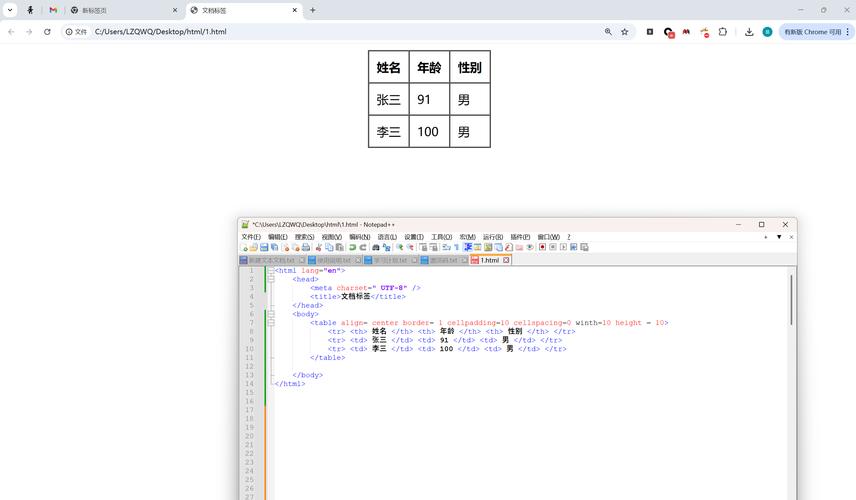
(图片来源网络,侵删)
<!-- example9.html -->
<!DOCTYPE html>
<html lang="zh-CN">
<head>
    <meta charset="UTF-8">
    <meta name="viewport" content="width=device-width, initial-scale=1.0">选项卡组件</title>
    <style>
        body { font-family: -apple-system, BlinkMacSystemFont, 'Segoe UI', Roboto, sans-serif; background: #f4f7f6; display: flex; justify-content: center; align-items: center; height: 100vh; }
.tab-container { width: 90%; max 

