个人简介页面(基础静态页面)
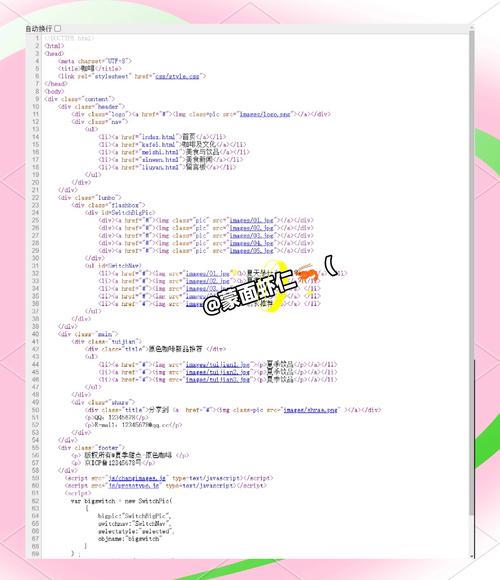
这是一个最简单的HTML页面,包含了标题、段落、图片、列表和链接等基本元素,适合初学者入门。
(图片来源网络,侵删)
设计思路
- 结构: 使用
<header>,<main>,<section>,<footer>等语义化标签来构建页面结构。 - 包含个人头像、姓名、简介、技能列表和联系方式。
- 样式: 内联
<style>标签进行简单的美化,如居中、字体、颜色等。
源代码 (index.html)
<!DOCTYPE html>
<html lang="zh-CN">
<head>
<meta charset="UTF-8">
<meta name="viewport" content="width=device-width, initial-scale=1.0">我的个人简介</title>
<style>
/* 全局样式 */
body {
font-family: 'Microsoft YaHei', Arial, sans-serif; /* 设置字体 */
line-height: 1.6; /* 设置行高 */
margin: 0;
padding: 0;
background-color: #f4f4f4;
color: #333;
}
/* 页面容器 */
.container {
width: 80%;
max-width: 800px;
margin: 20px auto; /* 上下20px,左右自动实现居中 */
background-color: #fff;
padding: 30px;
border-radius: 8px;
box-shadow: 0 0 15px rgba(0,0,0,0.1);
}
/* 头部样式 */
header {
text-align: center;
border-bottom: 1px solid #eee;
padding-bottom: 20px;
margin-bottom: 20px;
}
header h1 {
color: #0056b3;
}
/* 头像样式 */
.profile-img {
width: 150px;
height: 150px;
border-radius: 50%; /* 将图片变为圆形 */
border: 5px solid #fff;
box-shadow: 0 0 10px rgba(0,0,0,0.2);
}
/* 技能列表样式 */
.skills ul {
list-style-type: none; /* 移除列表前的点 */
padding: 0;
}
.skills li {
background-color: #e9e9e9;
margin: 5px 0;
padding: 10px;
border-left: 5px solid #0056b3;
}
/* 页脚样式 */
footer {
text-align: center;
margin-top: 20px;
font-size: 0.9em;
color: #777;
border-top: 1px solid #eee;
padding-top: 20px;
}
</style>
</head>
<body>
<div class="container">
<header>
<!--
<img> 标签用于插入图片
src: 图片路径
alt: 图片的替代文本,对SEO和可访问性很重要
-->
<img src="https://via.placeholder.com/150" alt="我的头像" class="profile-img">
<h1>张三</h1>
<p>一名热爱前端开发的工程师</p>
</header>
<main>
<section>
<h2>关于我</h2>
<p>
你好!我叫张三,毕业于XX大学计算机科学专业,我专注于Web前端开发已有3年,
熟练掌握HTML, CSS和JavaScript,我热衷于创建用户友好、视觉吸引力强的网站,
并致力于学习最新的前端技术。
</p>
</section>
<section class="skills">
<h2>我的技能</h2>
<ul>
<li>HTML5 / CSS3</li>
<li>JavaScript (ES6+)</li>
<li>响应式网页设计</li>
<li>Vue.js / React 框架</li>
<li>Git 版本控制</li>
</ul>
</section>
</main>
<footer>
<p>© 2025 张三的个人主页. 保留所有权利.</p>
<!--
<a> 标签用于创建链接
href: 链接的目标地址
target="_blank": 在新标签页中打开链接
-->
<p>
联系我:
<a href="mailto:zhangsan@example.com" target="_blank">发送邮件</a> |
<a href="https://github.com" target="_blank">GitHub</a>
</p>
</footer>
</div>
</body>
</html>
产品展示页面(带交互和响应式布局)
这个页面展示了如何创建一个带有导航栏、产品卡片和简单JavaScript交互的响应式布局。
设计思路
- 结构: 顶部固定导航栏,主体部分为产品网格布局,底部页脚。
- 交互: 使用JavaScript实现一个简单的“添加到购物车”功能,点击后会弹出提示并更新图标。
- 响应式: 使用媒体查询 (
@media),在不同屏幕尺寸下(桌面、平板、手机)改变布局。 - 样式: 将CSS代码分离到
<style>标签中,使用Flexbox进行布局。
源代码 (products.html)
<!DOCTYPE html>
<html lang="zh-CN">
<head>
    <meta charset="UTF-8">
    <meta name="viewport" content="width=device-width, initial-scale=1.0">精品商店 - 产品展示</title>
    <style>
        /* --- 全局和基础样式 --- */
        body {
            font-family: 'Helvetica Neue', Arial, sans-serif;
            margin: 0;
            background-color: #f0f2f5;
            color: #333;
        }
        /* --- 导航栏样式 --- */
        nav {
            background-color: #fff;
            padding: 15px 20px;
            position: fixed; /* 固定定位 */
            top: 0;
            left: 0;
            right: 0;
            box-shadow: 0 2px 5px rgba(0,0,0,0.1);
            z-index: 1000; /* 确保导航栏在最上层 */
        }
        .nav-container {
            display: flex;
            justify-content: space-between;
            align-items: center;
            max-width: 1200px;
            margin: 0 auto;
        }
        .logo {
            font-size: 1.5em;
            font-weight: bold;
            color: #007bff;
        }
        .nav-links a {
            color: #333;
            text-decoration: none;
            margin-left: 20px;
            transition: color 0.3s;
        }
        .nav-links a:hover {
            color: #007bff;
        }
        /* --- 主内容区域 --- */
        main {
            margin-top: 80px; /* 为固定导航栏留出空间 */
            padding: 20px;
        }
        .product-grid {
            display: flex;
            flex-wrap: wrap; /* 允许项目换行 */
            justify-content: center; /* 水平居中 */
            gap: 20px; /* 项目之间的间距 */
            max-width: 1200px;
            margin: 0 auto;
        }
        /* --- 产品卡片样式 --- */
        .product-card {
            background-color: #fff;
            border-radius: 8px;
            box-shadow: 0 4px 8px rgba(0,0,0,0.1);
            overflow: hidden; /* 使圆角生效 */
            width: 280px;
            transition: transform 0.3s, box-shadow 0.3s;
        }
        .product-card:hover {
            transform: translateY(-5px); /* 鼠标悬停时上移 */
            box-shadow: 0 8px 16px rgba(0,0,0,0.2);
        }
        .product-img {
            width: 100%;
            height: 200px;
            object-fit: cover; /* 保持图片比例并填充区域 */
        }
        .product-info {
            padding: 15px;
        }
        .product-info h3 {
            margin-top: 0;
            color: #333;
        }
        .product-info p {
            color: #666;
            font-size: 0.9em;
        }
        .product-footer {
            display: flex;
            justify-content: space-between;
            align-items: center;
            padding: 0 15px 15px;
        }
        .price {
            font-weight: bold;
            color: #d9534f;
            font-size: 1.2em;
        }
        .add-to-cart-btn {
            background-color: #007bff;
            color: white;
            border: none;
            padding: 8px 15px;
            border-radius: 5px;
            cursor: pointer;
            transition: background-color 0.3s;
        }
        .add-to-cart-btn:hover {
            background-color: #0056b3;
        }
        /* --- 响应式设计 --- */
        /* 平板设备 */
        @media (max-width: 768px) {
            .product-card {
                width: calc(50% - 20px); /* 两列布局,并考虑间距 */
            }
        }
        /* 手机设备 */
        @media (max-width: 480px) {
            .product-card {
                width: 100%; /* 单列布局 */
            }
            .nav-links {
                display: none; /* 在小屏幕上隐藏部分链接 */
            }
        }
    </style>
</head>
<body>
    <!-- 导航栏 -->
    <nav>
        <div class="nav-container">
            <div class="logo">精品商店</div>
            <div class="nav-links">
                <a href="#home">首页</a>
                <a href="#products">产品</a>
                <a href="#about">关于我们</a>
                <a href="#contact">联系方式</a>
            </div>
        </div>
    </nav>
    <!-- 主内容 -->
    <main>
        <div class="product-grid">
            <!-- 产品卡片 1 -->
            <div class="product-card">
                <img src="https://via.placeholder.com/280x200?text=产品图片1" alt="智能手表" class="product-img">
                <div class="product-info">
                    <h3>智能手表 Pro</h3>
                    <p>支持心率监测、GPS定位、50米防水,续航长达7天。</p>
                </div>
                <div class="product-footer">
                    <span class="price">¥1299</span>
                    <button class="add-to-cart-btn" onclick="addToCart('智能手表 Pro')">加入购物车</button>
                </div>
            </div>
            <!-- 产品卡片 2 -->
            <div class="product-card">
                <img src="https://via.placeholder.com/280x200?text=产品图片2" alt="无线耳机" class="product-img">
                <div class="product-info">
                    <h3>降噪无线耳机</h3>
                    <p>主动降噪技术,Hi-Fi音质,舒适佩戴,30小时续航。</p>
                </div>
                <div class="product-footer">
                    <span class="price">¥899</span>
                    <button class="add-to-cart-btn" onclick="addToCart('降噪无线耳机')">加入购物车</button>
                </div>
            </div>
            <!-- 产品卡片 3 -->
            <div class="product-card">
                <img src="https://via.placeholder.com/280x200?text=产品图片3" alt="便携充电宝" class="product-img">
                <div class="product-info">
                    <h3>20000mAh 充电宝</h3>
                    <p>大容量快充,支持多设备同时充电,轻薄便携。</p>
                </div>
                <div class="product-footer">
                    <span class="price">¥199</span>
                    <button class="add-to-cart-btn" onclick="addToCart('20000mAh 充电宝')">加入购物车</button>
                </div>
            </div>
            <!-- 产品卡片 4 -->
            <div class="product-card">
                <img src="https://via.placeholder.com/280x200?text=产品图片4" alt="机械键盘" class="product-img">
                <div class="product-info">
                    <h3>RGB机械键盘</h3>
                    <p>Cherry轴体,全键无冲,炫酷RGB背光,游戏办公两相宜。</p>
                </div>
                <div class="product-footer">
                    <span class="price">¥599</span>
                    <button class="add-to-cart-btn" onclick="addToCart('RGB机械键盘')">加入购物车</button>
                </div>
            </div>
        </div>
    </main>
    <!-- 简单的JavaScript交互 -->
    <script>
        function addToCart(productName) {
            // 创建一个提示元素
            const notification = document.createElement('div');
            notification.style.position = 'fixed';
            notification.style.bottom = '20px';
            notification.style.right = '20px';
            notification.style.backgroundColor = '#28a745';
            notification.style.color = 'white';
            notification.style.padding = '15px 20px';
            notification.style.borderRadius = '5px';
            notification.style.boxShadow = '0 4px 8px rgba(0,0,0,0.2)';
            notification.style.zIndex = '2000';
            notification.textContent = `已将 "${productName}" 添加到购物车!`;
            // 将提示添加到页面
            document.body.appendChild(notification);
            // 3秒后移除提示
            setTimeout(() => {
                notification.style.opacity = '0';
                notification.style.transition = 'opacity 0.5s';
                setTimeout(() => {
                    document.body.removeChild(notification);
                }, 500);
            }, 3000);
        }
    </script>
</body>
</html>
单页应用式登录/注册页面
这个页面展示了如何使用CSS实现一个切换登录/注册表单的单页应用效果,无需刷新页面。
设计思路
- 结构: 一个包含两个表单(登录和注册)的容器,通过CSS控制其中一个显示,另一个隐藏。
- 交互: 点击“注册”或“登录”链接时,通过JavaScript动态切换表单的显示状态,并更新链接的样式。
- 样式: 使用现代化的设计,包括输入框焦点效果、按钮样式和整体布局。
源代码 (login.html)
<!DOCTYPE html>
<html lang="zh-CN">
<head>
    <meta charset="UTF-8">
    <meta name="viewport" content="width=device-width, initial-scale=1.0">登录/注册</title>
    <style>
        * {
            box-sizing: border-box;
            margin: 0;
            padding: 0;
        }
        body {
            font-family: 'Arial', sans-serif;
            background: linear-gradient(135deg, #6a11cb 0%, #2575fc 100%);
            height: 100vh;
            display: flex;
            justify-content: center;
            align-items: center;
        }
        .container {
            background-color: #fff;
            padding: 40px;
            border-radius: 10px;
            box-shadow: 0 15px 35px rgba(0, 0, 0, 0.1);
            width: 400px;
            position: relative;
            overflow: hidden;
        }
        .form-container {
            position: relative;
        }
        .form h2 {
            text-align: center;
            margin-bottom: 30px;
            color: #333;
        }
        .input-group {
            margin-bottom: 20px;
        }
        .input-group input {
            width: 100%;
            padding: 12px;
            border: 1px solid #ddd;
            border-radius: 5px;
            font-size: 16px;
            transition: border-color 0.3s;
        }
        .input-group input:focus {
            outline: none;
            border-color: #2575fc;
        }
        .btn {
            width: 100%;
            padding: 12px;
            background-color: #2575fc;
            border: none;
            border-radius: 5px;
            color: white;
            font-size: 16px;
            cursor: pointer;
            transition: background-color 0.3s;
        }
        .btn:hover {
            background-color: #1a5bb8;
        }
        .form-switch {
            text-align: center;
            margin-top: 20px;
        }
        .form-switch a {
            color: #2575fc;
            text-decoration: none;
            cursor: pointer;
            font-weight: bold;
        }
        /* 核心CSS:通过display属性控制表单的显示和隐藏 */
        #login-form { display: block; }
        #register-form { display: none; }
        /* 当注册表单激活时,隐藏登录表单,显示注册表单 */
        .container.active #login-form { display: none; }
        .container.active #register-form { display: block; }
    </style>
</head>
<body>
    <div class="container" id="auth-container">
        <div class="form-container">
            <!-- 登录表单 -->
            <form id="login-form" class="form">
                <h2>用户登录</h2>
                <div class="input-group">
                    <input type="text" placeholder="请输入用户名或邮箱" required>
                </div>
                <div class="input-group">
                    <input type="password" placeholder="请输入密码" required>
                </div>
                <button type="submit" class="btn">登录</button>
                <div class="form-switch">
                    还没有账号? <a href="#" id="show-register">立即注册</a>
                </div>
            </form>
            <!-- 注册表单 -->
            <form id="register-form" class="form">
                <h2>用户注册</h2>
                <div class="input-group">
                    <input type="text" placeholder="请输入用户名" required>
                </div>
                <div class="input-group">
                    <input type="email" placeholder="请输入邮箱" required>
                </div>
                <div class="input-group">
                    <input type="password" placeholder="请输入密码" required>
                </div>
                <div class="input-group">
                    <input type="password" placeholder="请再次输入密码" required>
                </div>
                <button type="submit" class="btn">注册</button>
                <div class="form-switch">
                    已有账号? <a href="#" id="show-login">立即登录</a>
                </div>
            </form>
        </div>
    </div>
    <script>
        const authContainer = document.getElementById('auth-container');
        const showRegisterLink = document.getElementById('show-register');
        const showLoginLink = document.getElementById('show-login');
        // 点击“立即注册”链接
        showRegisterLink.addEventListener('click', (event) => {
            event.preventDefault(); // 阻止链接的默认跳转行为
            authContainer.classList.add('active'); // 添加 'active' 类来切换表单
        });
        // 点击“立即登录”链接
        showLoginLink.addEventListener('click', (event) => {
            event.preventDefault();
            authContainer.classList.remove('active'); // 移除 'active' 类
        });
    </script>
</body>
</html>
如何使用这些范文
- 复制代码: 将您感兴趣的范文的完整代码块复制下来。
- 创建文件: 在您的电脑上创建一个新的文本文件,将代码粘贴进去。
- 保存文件: 将文件另存为
.html格式,index.html、products.html或login.html。 - 查看效果: 使用任何现代浏览器(如 Chrome, Firefox, Edge)打开这个
.html文件,您就可以看到页面的实际效果了。
学习建议
- 从基础开始: 先理解范文一,掌握HTML的基本标签和CSS的基本用法。
- 逐步深入: 学习范文二,了解Flexbox布局、媒体查询和JavaScript的简单交互。
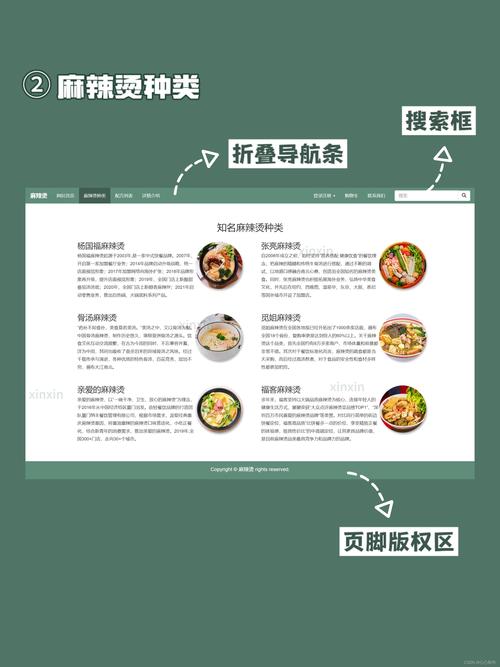
- 模仿与创新: 尝试修改这些范文中的颜色、文字、图片,或者添加新的功能,比如在产品页增加一个搜索框。
- 分离代码: 在实际项目中,通常会将HTML、CSS和JavaScript代码分别放在不同的文件中(
style.css和script.js),这样更易于管理和维护,您可以尝试将范文中的<style>和<script>内容提取出来,创建独立的文件进行练习。
(图片来源网络,侵删)


