教程目标
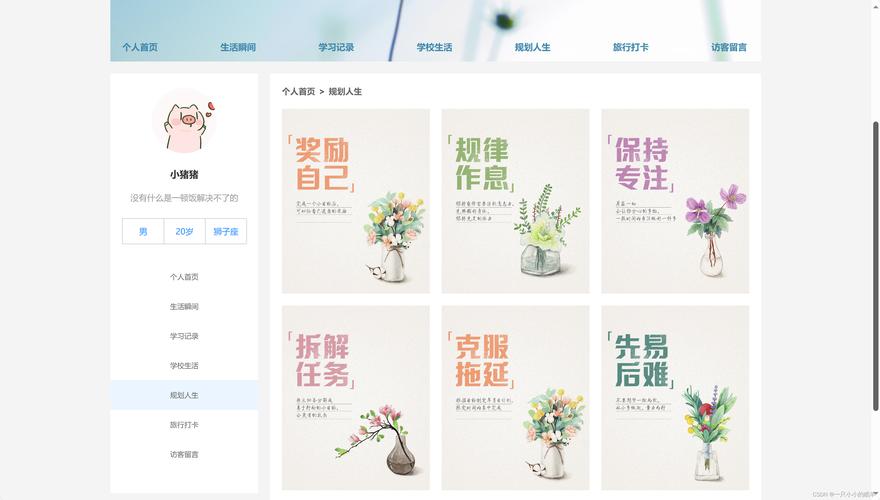
创建一个包含以下部分的个人网页:

(图片来源网络,侵删)
- 导航栏:点击可以平滑滚动到对应部分。
- 个人介绍:一张头像和一段个人简介。
- 我的技能:用进度条展示你的技能水平。
- 我的项目:以卡片形式展示你的项目作品。
- 联系方式:提供你的邮箱或社交媒体链接。
第一步:准备工作
在开始之前,你只需要两样东西:
-
一个文本编辑器:
- 强烈推荐:Visual Studio Code (VS Code),它免费、强大,并且对前端开发非常友好。
- 其他选择:Sublime Text, Atom, 或者 Windows 自带的记事本(不推荐,功能太弱)。
-
一个网页浏览器:
你电脑上已经有的 Chrome, Firefox, Edge 或 Safari 都可以。
 (图片来源网络,侵删)
第二步:创建基本文件结构
一个规范的网页项目,通常会包含一个文件夹和几个文件。
- 在你的电脑上创建一个新的文件夹,命名为
my-website(或任何你喜欢的名字)。 - 打开这个文件夹,在里面创建以下三个文件:
index.html(这是网页的主内容)style.css(这是网页的样式,比如颜色、字体、布局)script.js(这是网页的交互行为,比如点击滚动)
现在你的文件夹结构应该看起来像这样:
my-website/
├── index.html
├── style.css
└── script.js
第三步:编写 HTML 结构 (index.html)
HTML 是网页的骨架,它定义了内容的结构,我们将使用现代的 语义化标签,这有利于搜索引擎和可读性。
打开 index.html 文件,将下面的代码全部复制进去:
(图片来源网络,侵删)
<!DOCTYPE html>
<html lang="zh-CN">
<head>
<meta charset="UTF-8">
<meta name="viewport" content="width=device-width, initial-scale=1.0">我的个人网页</title>
<link rel="stylesheet" href="style.css">
<!-- 引入一个字体图标库,方便使用图标 -->
<link rel="stylesheet" href="https://cdnjs.cloudflare.com/ajax/libs/font-awesome/6.0.0-beta3/css/all.min.css">
</head>
<body>
<!-- 导航栏 -->
<header>
<nav>
<ul>
<li><a href="#about">关于我</a></li>
<li><a href="#skills">我的技能</a></li>
<li><a href="#projects">我的项目</a></li>
<li><a href="#contact">联系我</a></li>
</ul>
</nav>
</header>
<main>
<!-- 个人介绍部分 -->
<section id="about">
<img src="https://via.placeholder.com/150" alt="我的头像">
<h1>你好,我是张三</h1>
<p>我是一名充满热情的前端开发爱好者,我喜欢创造美观、实用的网页,并享受将想法变为现实的过程,欢迎来到我的个人空间!</p>
</section>
<!-- 我的技能部分 -->
<section id="skills">
<h2>我的技能</h2>
<div class="skill-item">
<span>HTML / CSS</span>
<div class="skill-bar">
<div class="skill-level" style="width: 90%;"></div>
</div>
</div>
<div class="skill-item">
<span>JavaScript</span>
<div class="skill-bar">
<div class="skill-level" style="width: 75%;"></div>
</div>
</div>
<div class="skill-item">
<span>UI/UX 设计</span>
<div class="skill-bar">
<div class="skill-level" style="width: 60%;"></div>
</div>
</div>
</section>
<!-- 我的项目部分 -->
<section id="projects">
<h2>我的项目</h2>
<div class="projects-container">
<div class="project-card">
<h3>项目一:个人博客</h3>
<p>一个使用 React 和 Node.js 构建的个人博客系统,支持文章发布和评论。</p>
<a href="#">查看详情</a>
</div>
<div class="project-card">
<h3>项目二:在线待办清单</h3>
<p>一个简洁的在线任务管理工具,可以添加、删除和标记完成待办事项。</p>
<a href="#">查看详情</a>
</div>
<div class="project-card">
<h3>项目三:天气预报应用</h3>
<p>调用第三方 API,展示指定城市的实时天气和未来几天的预报。</p>
<a href="#">查看详情</a>
</div>
</div>
</section>
<!-- 联系方式部分 -->
<section id="contact">
<h2>联系我</h2>
<p>如果你想与我合作或有任何问题,欢迎通过以下方式联系我:</p>
<div class="social-links">
<a href="mailto:your.email@example.com"><i class="fas fa-envelope"></i> Email</a>
<a href="#"><i class="fab fa-github"></i> GitHub</a>
<a href="#"><i class="fab fa-linkedin"></i> LinkedIn</a>
</div>
</section>
</main>
<footer>
<p>© 2025 我的个人网页. All rights reserved.</p>
</footer>
<script src="script.js"></script>
</body>
</html>
代码解释:
<head>部分:设置网页标题、字符编码,并引入了我们的style.css和一个图标库Font Awesome。<body>部分:包含了所有可见内容。<header>:导航栏。<main>区。<section>:每个大功能模块(关于我、技能等)都用一个section标签包裹,并给它一个id,方便导航链接指向。<img>:注意:这里我用了一个占位图链接,你需要替换成你自己的头像图片路径,images/my-avatar.jpg。<footer>:页脚。
第四步:添加 CSS 样式 (style.css)
有了,但看起来很朴素,CSS 就是用来“化妆”的,让网页变得美观。
打开 style.css 文件,复制以下代码:
/* --- 全局样式和变量 --- */
:root {
    --primary-color: #007bff;
    --secondary-color: #343a40;
    --background-color: #f4f4f4;
    --text-color: #333;
    --card-bg-color: #ffffff;
}
body {
    font-family: 'Segoe UI', Tahoma, Geneva, Verdana, sans-serif;
    line-height: 1.6;
    margin: 0;
    padding: 0;
    color: var(--text-color);
    background-color: var(--background-color);
}
section {
    padding: 60px 20px;
    max-width: 1100px;
    margin: auto;
    text-align: center;
}
h1, h2, h3 {
    color: var(--secondary-color);
}
h2 {
    border-bottom: 2px solid var(--primary-color);
    padding-bottom: 10px;
    display: inline-block;
    margin-bottom: 40px;
}
/* --- 导航栏 --- */
header {
    background: var(--secondary-color);
    position: sticky;
    top: 0;
    z-index: 1000;
    box-shadow: 0 2px 5px rgba(0,0,0,0.1);
}
nav ul {
    list-style: none;
    padding: 0;
    margin: 0;
    display: flex;
    justify-content: center;
}
nav ul li {
    margin: 0 20px;
}
nav ul li a {
    color: #fff;
    text-decoration: none;
    font-size: 18px;
    transition: color 0.3s ease;
}
nav ul li a:hover {
    color: var(--primary-color);
}
/* --- 关于我 --- */
#about {
    display: flex;
    flex-direction: column;
    align-items: center;
}
#about img {
    border-radius: 50%;
    border: 5px solid #fff;
    box-shadow: 0 0 15px rgba(0,0,0,0.1);
    margin-bottom: 20px;
}
/* --- 我的技能 --- */
#skills {
    background-color: var(--card-bg-color);
}
.skill-item {
    margin-bottom: 25px;
    text-align: left;
    max-width: 600px;
    margin-left: auto;
    margin-right: auto;
}
.skill-bar {
    background-color: #ddd;
    height: 20px;
    border-radius: 10px;
    overflow: hidden;
}
.skill-level {
    height: 100%;
    background-color: var(--primary-color);
    border-radius: 10px;
    transition: width 1.5s ease-in-out; /* 动画效果 */
}
/* --- 我的项目 --- */
.projects-container {
    display: flex;
    flex-wrap: wrap;
    justify-content: center;
    gap: 20px;
}
.project-card {
    background: var(--card-bg-color);
    border: 1px solid #ddd;
    border-radius: 8px;
    padding: 20px;
    width: 300px;
    box-shadow: 0 4px 8px rgba(0,0,0,0.1);
    transition: transform 0.3s ease;
}
.project-card:hover {
    transform: translateY(-10px);
}
.project-card a {
    display: inline-block;
    margin-top: 15px;
    color: var(--primary-color);
    text-decoration: none;
    font-weight: bold;
}
/* --- 联系我 --- */
.social-links a {
    display: inline-block;
    margin: 0 15px;
    color: var(--primary-color);
    text-decoration: none;
    font-size: 24px;
    transition: color 0.3s ease;
}
.social-links a:hover {
    color: var(--secondary-color);
}
/* --- 页脚 --- */
footer {
    background: var(--secondary-color);
    color: #fff;
    text-align: center;
    padding: 20px;
    margin-top: 40px;
}
代码解释:
root:定义了一些 CSS 变量,方便统一管理颜色。body:设置了全局字体、背景色和文字颜色。header nav:让导航栏固定在顶部 (position: sticky),并设置了样式。section:为每个部分添加了内边距和外边距,让内容不贴边。#skills .skill-bar:创建了技能进度条的视觉效果。transition属性为进度条宽度变化添加了平滑的动画。.projects-container和.project-card:使用 Flexbox 布局让项目卡片整齐排列,并添加了悬停效果。#contact .social-links:美化社交媒体链接。
第五步:添加 JavaScript 交互 (script.js)
我们添加一点 JavaScript,让点击导航栏链接时,页面能平滑滚动到对应部分,而不是“跳”过去。
打开 script.js 文件,复制以下代码:
document.addEventListener('DOMContentLoaded', function() {
    // 获取所有导航链接
    const navLinks = document.querySelectorAll('nav a[href^="#"]');
    navLinks.forEach(link => {
        link.addEventListener('click', function(e) {
            e.preventDefault(); // 阻止默认的跳转行为
            const targetId = this.getAttribute('href').substring(1); // 获取目标id,如 "about"
            const targetElement = document.getElementById(targetId); // 找到目标元素
            if (targetElement) {
                // 计算滚动位置,减去一个偏移量,避免标题被导航栏遮挡
                const offsetTop = targetElement.offsetTop - 70; // 70是导航栏的大致高度
                // 使用 scrollIntoView 方法进行平滑滚动
                window.scrollTo({
                    top: offsetTop,
                    behavior: 'smooth'
                });
            }
        });
    });
});
代码解释:
document.addEventListener('DOMContentLoaded', ...):确保整个 HTML 文档加载完成后再执行脚本。document.querySelectorAll('nav a[href^="#"]'):选择所有href属性以 开头的导航链接。link.addEventListener('click', ...):为每个链接添加点击事件监听器。e.preventDefault():阻止浏览器默认的锚点跳转行为。window.scrollTo(...):这是核心代码,它告诉浏览器滚动到指定位置,behavior: 'smooth'参数实现了平滑滚动效果。
第六步:预览你的网页
所有工作都完成了!如何看到你的成果呢?
-
直接打开文件:找到你的
my-website文件夹,直接双击index.html文件,它就会在你的默认浏览器中打开。- 缺点:每次修改代码后,需要手动刷新浏览器才能看到变化,由于安全限制,像
script.js中的平滑滚动功能在某些浏览器中可能无法工作。
- 缺点:每次修改代码后,需要手动刷新浏览器才能看到变化,由于安全限制,像
-
使用 Live Server (推荐):这是最方便的方式!
- 如果你安装了 VS Code,请先安装它的扩展插件:
Live Server,在 VS Code 的扩展商店搜索并安装。 - 安装后,在 VS Code 中打开
my-website文件夹。 - 在
index.html文件上,右键点击,选择 "Open with Live Server"。 - 你的浏览器会自动打开,并且当代码文件被保存时,浏览器会自动刷新显示最新版本。
- 如果你安装了 VS Code,请先安装它的扩展插件:
如何进一步完善?
恭喜你,你已经完成了你的第一个个人网页!如果你想让它更酷,可以尝试:
- 添加更多内容:比如一个“经历”或“教育背景”部分。
- 更换图片:用你自己的照片和项目截图替换占位图。
- 调整颜色:在
style.css的root部分修改颜色变量,打造你自己的风格。 - 学习响应式设计:添加一些媒体查询 (
@media),让你的网页在手机上也能完美显示。 - 部署到线上:学习使用 GitHub Pages、Netlify 或 Vercel 等免费服务,把你的网页发布到互联网上,任何人都可以访问!
这个教程为你打下了坚实的基础,前端的世界非常广阔,继续探索和学习吧!


