JavaScript 下拉列表 完全教程
下拉列表(在 HTML 中是 <select> 元素)是网页表单中最常用的交互元素之一,它允许用户从多个选项中进行选择,本教程将教你如何使用 JavaScript 来创建、操作和控制下拉列表。
目录
-
第一部分:基础操作
- 1 获取下拉列表元素
- 2 获取选中的值和文本
- 3 动态添加选项
- 4 动态删除选项
- 5 清空所有选项
-
第二部分:进阶应用
- 1 联动下拉列表(二级联动)
- 2 搜索/过滤下拉列表
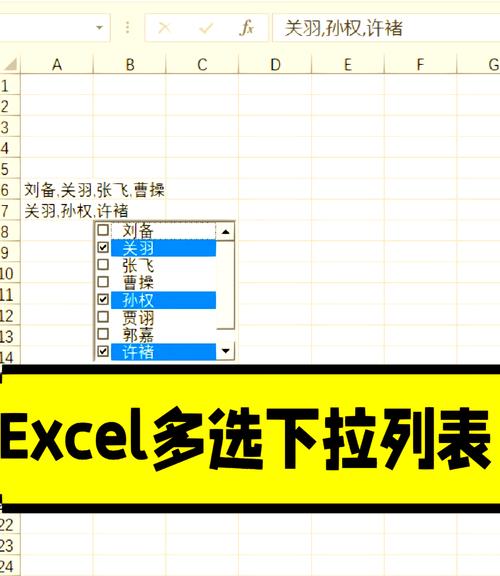
- 3 创建多选下拉列表
- 4 模拟一个自定义的下拉菜单
-
第三部分:最佳实践与注意事项
- 1 使用
data-*属性存储额外信息 - 2 性能优化(大量数据时)
- 3 可访问性 考虑
- 1 使用
第一部分:基础操作
1 获取下拉列表元素
你需要获取页面上 <select> 元素的引用,最简单的方法是使用 document.getElementById()。
HTML:
<label for="mySelect">选择一个水果:</label>
<select id="mySelect">
  <option value="">--请选择--</option>
  <option value="apple">苹果</option>
  <option value="banana">香蕉</option>
  <option value="orange">橙子</option>
</select>
JavaScript:
// 通过 ID 获取下拉列表元素
const selectElement = document.getElementById('mySelect');
console.log(selectElement); // 输出 <select> 元素本身
2 获取选中的值和文本
这是最常见的操作,当用户选择一个选项后,你需要知道他选择了什么。
selectElement.value: 获取当前选中选项的value属性值。selectElement.options: 获取一个包含所有<option>元素的HTMLOptionsCollection。selectElement.selectedIndex: 获取当前选中选项的索引。
示例:
const selectElement = document.getElementById('mySelect');
// 监听 change 事件,当选择改变时触发
selectElement.addEventListener('change', function() {
  // 获取选中的值
  const selectedValue = this.value;
  console.log('选中的值是:', selectedValue);
  // 获取选中的文本
  const selectedText = this.options[this.selectedIndex].text;
  console.log('选中的文本是:', selectedText);
});
运行结果:
- 当你选择 "苹果" 时,控制台会输出:
选中的值是: apple 选中的文本是: 苹果 - 当你选择 "香蕉" 时,控制台会输出:
选中的值是: banana
选中的文本是: 香蕉
3 动态添加选项
你可以使用 Option 构造函数或直接创建 <option> 元素来添加新选项。
使用 Option 构造函数 (推荐)
const selectElement = document.getElementById('mySelect');
// 创建一个新的 Option 对象
const newOption = new Option('葡萄', 'grape');
// 将新选项添加到下拉列表的末尾
selectElement.add(newOption);
// 如果想插入到指定位置,例如第二个位置(索引为1)
// selectElement.add(newOption, 1);
使用 DOM 方法
const selectElement = document.getElementById('mySelect');
// 1. 创建 <option> 元素
const optionElement = document.createElement('option');
// 2. 设置其属性
optionElement.value = 'strawberry';
optionElement.text = '草莓';
// 3. 将其添加到 <select> 中
selectElement.add(optionElement);
4 动态删除选项
使用 remove() 方法可以删除指定索引的选项。
const selectElement = document.getElementById('mySelect');
// 删除索引为 1 的选项 (即 "香蕉")
selectElement.remove(1);
// 也可以直接传一个 option 元素
// const optionToRemove = selectElement.options[2];
// selectElement.remove(optionToRemove);
5 清空所有选项
最简单的方法是将 selectElement 的 length 属性设置为 0。
const selectElement = document.getElementById('mySelect');
// 将 length 设置为 0 会清空所有选项
selectElement.length = 0;
// 也可以循环删除,但效率较低
// while (selectElement.options.length > 0) {
//   selectElement.remove(0);
// }
第二部分:进阶应用
1 联动下拉列表(二级联动)
这是一个非常经典的应用场景,例如选择省份后,城市列表自动更新。
HTML:
<label for="province">省份:</label>
<select id="province">
  <option value="">--请选择省份--</option>
  <option value="zj">浙江省</option>
  <option value="gd">广东省</option>
</select>
<label for="city">城市:</label>
<select id="city">
  <option value="">--请先选择省份--</option>
</select>
JavaScript:
const provinceSelect = document.getElementById('province');
const citySelect = document.getElementById('city');
// 城市数据
const cityData = {
  zj: ['杭州', '宁波', '温州'],
  gd: ['广州', '深圳', '珠海']
};
// 监听省份下拉列表的 change 事件
provinceSelect.addEventListener('change', function() {
  // 1. 清空城市下拉列表
  citySelect.length = 0;
  // 2. 获取选中的省份值
  const selectedProvince = this.value;
  // 3. 如果没有选择省份,则不进行操作
  if (!selectedProvince) {
    const defaultOption = new Option('--请先选择省份--', '');
    citySelect.add(defaultOption);
    return;
  }
  // 4. 遍历对应省份的城市数据
  const cities = cityData[selectedProvince];
  cities.forEach(cityName => {
    // 5. 为每个城市创建一个 option 并添加到城市列表
    const option = new Option(cityName, cityName);
    citySelect.add(option);
  });
});
2 搜索/过滤下拉列表
当选项很多时,提供一个搜索框来过滤选项会极大提升用户体验。
HTML:
<input type="text" id="searchInput" placeholder="搜索水果...">
<select id="filterableSelect" size="5"> <!-- size 属性可以显示更多选项 -->
  <option value="apple">Apple</option>
  <option value="apricot">Apricot</option>
  <option value="banana">Banana</option>
  <option value="blueberry">Blueberry</option>
  <option value="cherry">Cherry</option>
  <option value="grape">Grape</option>
  <option value="lemon">Lemon</option>
  <option value="mango">Mango</option>
</select>
JavaScript:
const searchInput = document.getElementById('searchInput');
const selectElement = document.getElementById('filterableSelect');
// 保存原始的所有选项
const originalOptions = Array.from(selectElement.options);
searchInput.addEventListener('input', function() {
  const searchTerm = this.value.toLowerCase();
  // 清空当前选项
  selectElement.length = 0;
  if (searchTerm === '') {
    // 如果搜索框为空,恢复所有原始选项
    originalOptions.forEach(option => {
      selectElement.add(option.cloneNode(true)); // cloneNode 避免引用同一对象
    });
  } else {
    // 过滤选项
    const filteredOptions = originalOptions.filter(option => {
      return option.text.toLowerCase().includes(searchTerm);
    });
    // 添加过滤后的选项
    if (filteredOptions.length > 0) {
      filteredOptions.forEach(option => {
        selectElement.add(option.cloneNode(true));
      });
    } else {
      // 如果没有匹配项,显示提示
      const noResultOption = new Option('没有找到匹配项', '');
      selectElement.add(noResultOption);
    }
  }
});
3 创建多选下拉列表
标准的 <select> 元素通过添加 multiple 属性可以实现多选,但用户体验不佳,下面我们用纯 JavaScript 和 CSS 模拟一个更美观的多选下拉框。
HTML:
<div class="custom-select" id="myCustomSelect">
  <div class="selected">请选择</div>
  <div class="options">
    <div class="option" data-value="apple">苹果</div>
    <div class="option" data-value="banana">香蕉</div>
    <div class="option" data-value="orange">橙子</div>
  </div>
</div>
<input type="hidden" id="selectedValues"> <!-- 用于存储选中的值 -->
CSS:
.custom-select {
  position: relative;
  width: 200px;
  user-select: none;
}
.selected {
  padding: 10px;
  border: 1px solid #ccc;
  cursor: pointer;
  background: white;
}
.options {
  position: absolute;
  top: 100%;
  left: 0;
  right: 0;
  border: 1px solid #ccc;
  border-top: none;
  background: white;
  display: none; /* 默认隐藏 */
  z-index: 10;
}
.options.show {
  display: block;
}
.option {
  padding: 10px;
  cursor: pointer;
}
.option:hover {
  background-color: #f0f0f0;
}
.option.selected {
  background-color: #e0e0e0;
}
JavaScript:
const customSelect = document.getElementById('myCustomSelect');
const selectedDiv = customSelect.querySelector('.selected');
const optionsDiv = customSelect.querySelector('.options');
const hiddenInput = document.getElementById('selectedValues');
// 点击 "selected" 区域来显示/隐藏选项
selectedDiv.addEventListener('click', function() {
  optionsDiv.classList.toggle('show');
});
// 点击选项
customSelect.querySelectorAll('.option').forEach(option => {
  option.addEventListener('click', function() {
    this.classList.toggle('selected'); // 切换选中状态样式
    // 收集所有选中的值
    const selectedValues = Array.from(customSelect.querySelectorAll('.option.selected'))
                                .map(opt => opt.dataset.value);
    // 更新隐藏输入框的值,方便表单提交
    hiddenInput.value = selectedValues.join(',');
    // 更新显示文本
    if (selectedValues.length > 0) {
      selectedDiv.textContent = `已选择 ${selectedValues.length} 项`;
    } else {
      selectedDiv.textContent = '请选择';
    }
  });
});
// 点击页面其他地方关闭下拉框
document.addEventListener('click', function(e) {
  if (!customSelect.contains(e.target)) {
    optionsDiv.classList.remove('show');
  }
});
4 模拟一个自定义的下拉菜单
这个例子与 2.3 类似,但更侧重于动态生成和事件委托,适用于选项非常多的情况。
<!-- 与 2.3 相同的 HTML 结构 -->
<div class="custom-select" id="dynamicSelect">
  <div class="selected">请选择</div>
  <div class="options"></div>
</div>
const dynamicSelect = document.getElementById('dynamicSelect');
const selectedDiv = dynamicSelect.querySelector('.selected');
const optionsDiv = dynamicSelect.querySelector('.options');
// 模拟从服务器获取的数据
const data = [
  { id: 1, name: '选项一' },
  { id: 2, name: '选项二' },
  { id: 3, name: '选项三' }
];
// 动态生成选项
data.forEach(item => {
  const optionDiv = document.createElement('div');
  optionDiv.className = 'option';
  optionDiv.dataset.value = item.id;
  optionDiv.textContent = item.name;
  optionsDiv.appendChild(optionDiv);
});
// 使用事件委托处理点击,比循环添加监听器更高效
optionsDiv.addEventListener('click', function(e) {
  // 确保点击的是 .option 元素
  if (e.target.classList.contains('option')) {
    // 这里可以添加单选或多选的逻辑
    // 单选示例:
    optionsDiv.querySelectorAll('.option').(opt => opt.classList.remove('selected'));
    e.target.classList.add('selected');
    selectedDiv.textContent = e.target.textContent;
    optionsDiv.classList.remove('show');
  }
});
// 点击显示/隐藏
selectedDiv.addEventListener('click', () => {
  optionsDiv.classList.toggle('show');
});
第三部分:最佳实践与注意事项
1 使用 data-* 属性存储额外信息
value 属性不足以满足需求,你可以使用自定义的 data-* 属性来存储任何你想在 JavaScript 中使用的信息。
HTML:
<select id="productSelect">
  <option value="prod_001" data-price="99.99" data-category="electronics">智能手机</option>
  <option value="prod_002" data-price="19.99" data-category="books">JavaScript高级程序设计</option>
</select>
JavaScript:
const productSelect = document.getElementById('productSelect');
productSelect.addEventListener('change', function() {
  const selectedOption = this.options[this.selectedIndex];
  const price = selectedOption.dataset.price;
  const category = selectedOption.dataset.category;
  console.log(`你选择了: ${selectedOption.text}`);
  console.log(`价格: $${price}`);
  console.log(`类别: ${category}`);
});
2 性能优化(大量数据时)
当下拉列表有成千上万个选项时,直接一次性渲染会导致页面卡顿。
- 虚拟滚动: 只渲染可视区域内的选项,当用户滚动时,动态地添加和移除 DOM 元素,这需要更复杂的实现,但能极大提升性能。
- 分步加载/懒加载: 初始只加载一部分选项,当用户滚动到底部时,通过 AJAX 请求加载更多数据并追加到列表中。
3 可访问性 考虑
当你用 <div> 和 <span> 模拟下拉列表时,可能会破坏屏幕阅读器等辅助工具的识别。
- 使用正确的 ARIA 属性:
role="combobox": 表示一个组合框,通常是一个文本输入框和一个下拉列表。role="listbox": 表示一个可选项的列表。aria-expanded="true/false": 指示下拉列表当前是否展开。aria-haspopup="listbox": 表明元素有一个弹出式的列表框。aria-activedescendant: 指定当前激活的(通过键盘导航的)列表项的 ID。
- 支持键盘导航: 确保用户可以使用
Tab键聚焦,Enter键打开/关闭,ArrowUp/ArrowDown键在选项间导航,Escape键关闭列表。 - 保持 HTML 结构: 如果不需要复杂的自定义样式,尽量使用原生
<select>和<option>标签,因为它们天生具有良好的可访问性。
本教程涵盖了从基础的获取、读写,到高级的联动、搜索和多选实现,并提供了性能和可访问性的建议,掌握这些技能,你将能够灵活地在任何项目中处理下拉列表相关的需求。
核心要点回顾:
- 使用
document.getElementById或其他选择器获取<select>元素。 - 通过
value和options[index].text获取选中值和文本。 - 使用
add()和remove()方法动态修改选项。 - 对于复杂交互,联动、搜索和多选是常见模式。
- 自定义组件时,务必考虑性能和可访问性。


