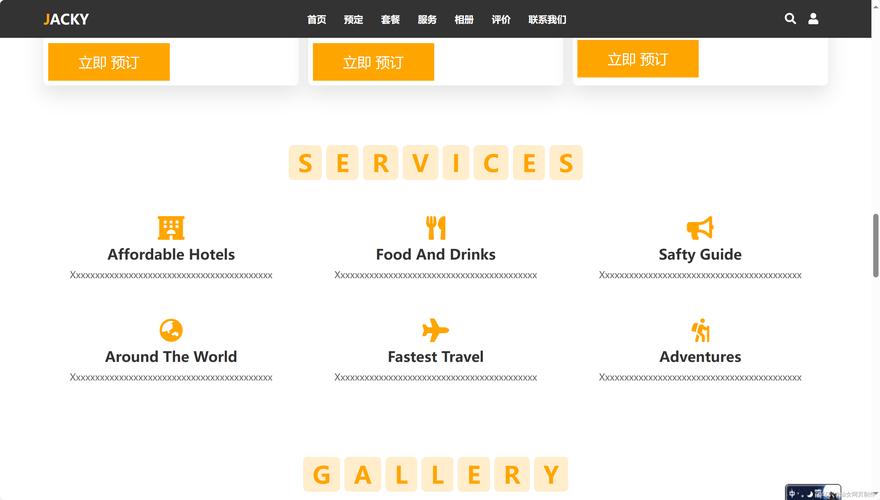
- 导航栏滚动特效:当用户向下滚动页面时,导航栏会从透明变为不透明,并可能改变样式。
- 图片轮播/幻灯片特效:一个自动播放的图片轮播器,带有左右箭头和底部指示器。
- 返回顶部按钮特效:当页面滚动超过一定距离后,一个“返回顶部”的按钮会缓缓浮现,点击后平滑地滚动到页面顶部。
最终效果预览
准备工作
在开始之前,请确保您的项目已经包含了 jQuery 库,您可以通过CDN链接快速引入。
(图片来源网络,侵删)
第1步:HTML 结构
创建一个 index.html 文件,并构建基本页面结构,我们需要一个导航栏、一个轮播图区域、一些内容来撑开页面,以及一个“返回顶部”按钮。
<!DOCTYPE html>
<html lang="zh-CN">
<head>
<meta charset="UTF-8">
<meta name="viewport" content="width=device-width, initial-scale=1.0">jQuery 特效展示</title>
<!-- 引入 jQuery 库 -->
<script src="https://code.jquery.com/jquery-3.6.0.min.js"></script>
<!-- 引入 CSS 文件 -->
<link rel="stylesheet" href="style.css">
</head>
<body>
<!-- 导航栏 -->
<header id="main-header">
<nav class="navbar">
<div class="logo">我的网站</div>
<ul class="nav-links">
<li><a href="#home">首页</a></li>
<li><a href="#about">lt;/a></li>
<li><a href="#services">服务</a></li>
<li><a href="#contact">联系</a></li>
</ul>
</nav>
</header>
<main>
<!-- 轮播图区域 -->
<section id="home">
<div class="slider-container">
<div class="slider">
<div class="slide">
<img src="https://picsum.photos/seed/slide1/1600/600.jpg" alt="幻灯片 1">
<div class="slide-content">
<h2>欢迎来到我们的网站</h2>
<p>体验jQuery带来的流畅动画效果</p>
</div>
</div>
<div class="slide">
<img src="https://picsum.photos/seed/slide2/1600/600.jpg" alt="幻灯片 2">
<div class="slide-content">
<h2>探索无限可能</h2>
<p>现代化的设计与交互体验</p>
</div>
</div>
<div class="slide">
<img src="https://picsum.photos/seed/slide3/1600/600.jpg" alt="幻灯片 3">
<div class="slide-content">
<h2>创造美好未来</h2>
<p>我们致力于提供最佳解决方案</p>
</div>
</div>
</div>
<!-- 左右箭头 -->
<button class="slider-btn prev">❮</button>
<button class="slider-btn next">❯</button>
<!-- 底部指示器 -->
<div class="slider-dots"></div>
</div>
</section>
<!-- 内容区域 (为了演示滚动效果) -->
<section id="about">
<h2>关于我们</h2>
<p>Lorem ipsum dolor sit amet, consectetur adipiscing elit. Sed do eiusmod tempor incididunt ut labore et dolore magna aliqua. Ut enim ad minim veniam, quis nostrud exercitation ullamco laboris nisi ut aliquip ex ea commodo consequat.</p>
<!-- 这里添加更多内容... -->
<div style="height: 1500px; background: linear-gradient(to bottom, #f0f0f0, #e0e0e0); text-align: center; line-height: 1500px; font-size: 2em; color: #888;">
向下滚动以查看特效
</div>
</section>
</main>
<!-- 返回顶部按钮 -->
<button id="back-to-top" title="返回顶部">↑</button>
<!-- 引入 JavaScript 文件 -->
<script src="script.js"></script>
</body>
</html>
第2步:CSS 样式
创建一个 style.css 文件,为页面和特效添加样式。
/* --- 基础样式 --- */
body {
    font-family: 'Arial', sans-serif;
    margin: 0;
    padding: 0;
    background-color: #f4f4f4;
    color: #333;
}
/* --- 导航栏样式 --- */
#main-header {
    position: fixed; /* 固定定位 */
    top: 0;
    left: 0;
    width: 100%;
    z-index: 1000;
    transition: all 0.3s ease; /* 过渡效果 */
}
#main-header.scrolled {
    background-color: rgba(255, 255, 255, 0.95); /* 半透明白色背景 */
    box-shadow: 0 2px 10px rgba(0, 0, 0, 0.1);
    padding: 5px 0; /* 滚动后变得更薄 */
}
.navbar {
    display: flex;
    justify-content: space-between;
    align-items: center;
    max-width: 1200px;
    margin: 0 auto;
    padding: 20px 20px;
}
.logo {
    font-size: 1.5em;
    font-weight: bold;
    color: #fff;
    transition: color 0.3s ease;
}
#main-header.scrolled .logo {
    color: #333;
}
.nav-links {
    list-style: none;
    padding: 0;
    margin: 0;
    display: flex;
}
.nav-links li {
    margin-left: 30px;
}
.nav-links a {
    text-decoration: none;
    color: #fff;
    font-weight: 500;
    transition: color 0.3s ease;
}
#main-header.scrolled .nav-links a {
    color: #333;
}
.nav-links a:hover {
    color: #007bff;
}
/* --- 轮播图样式 --- */
#home {
    margin-top: 70px; /* 为固定导航栏留出空间 */
    position: relative;
}
.slider-container {
    position: relative;
    width: 100%;
    height: 600px;
    overflow: hidden;
}
.slider {
    display: flex;
    transition: transform 0.5s ease-in-out;
    height: 100%;
}
.slide {
    min-width: 100%;
    position: relative;
}
.slide img {
    width: 100%;
    height: 100%;
    object-fit: cover;
}
.slide-content {
    position: absolute;
    top: 50%;
    left: 50%;
    transform: translate(-50%, -50%);
    text-align: center;
    color: white;
}
.slide-content h2 {
    font-size: 3em;
    margin-bottom: 10px;
    text-shadow: 2px 2px 8px rgba(0, 0, 0, 0.7);
}
.slide-content p {
    font-size: 1.2em;
    text-shadow: 1px 1px 5px rgba(0, 0, 0, 0.7);
}
.slider-btn {
    position: absolute;
    top: 50%;
    transform: translateY(-50%);
    background-color: rgba(0, 0, 0, 0.5);
    color: white;
    border: none;
    padding: 16px;
    cursor: pointer;
    font-size: 18px;
    transition: background-color 0.3s ease;
    z-index: 10;
}
.slider-btn:hover {
    background-color: rgba(0, 0, 0, 0.8);
}
.prev {
    left: 10px;
}
.next {
    right: 10px;
}
.slider-dots {
    position: absolute;
    bottom: 20px;
    left: 50%;
    transform: translateX(-50%);
    display: flex;
}
.dot {
    width: 12px;
    height: 12px;
    border-radius: 50%;
    background-color: rgba(255, 255, 255, 0.5);
    margin: 0 5px;
    cursor: pointer;
    transition: background-color 0.3s ease;
}
.dot.active {
    background-color: white;
}
/* --- 返回顶部按钮样式 --- */
#back-to-top {
    position: fixed;
    bottom: 20px;
    right: 20px;
    width: 50px;
    height: 50px;
    background-color: #007bff;
    color: white;
    border: none;
    border-radius: 50%;
    font-size: 20px;
    cursor: pointer;
    opacity: 0; /* 初始不可见 */
    visibility: hidden; /* 初始不可交互 */
    transition: opacity 0.3s ease, visibility 0.3s ease;
    z-index: 1000;
}
#back-to-top.show {
    opacity: 1;
    visibility: visible;
}
#back-to-top:hover {
    background-color: #0056b3;
}
/* --- 内容区域样式 --- */
section {
    padding: 60px 20px;
    max-width: 1200px;
    margin: 0 auto;
    text-align: center;
}
第3步:jQuery 特效逻辑
创建一个 script.js 文件,编写jQuery代码来实现这三个特效。
$(document).ready(function() {
    // --- 特效1: 导航栏滚动效果 ---
    $(window).scroll(function() {
        // 如果滚动位置超过100像素
        if ($(this).scrollTop() > 100) {
            $('#main-header').addClass('scrolled');
        } else {
            $('#main-header').removeClass('scrolled');
        }
    });
    // --- 特效2: 图片轮播特效 ---
    let currentSlide = 0;
    const slides = $('.slide');
    const totalSlides = slides.length;
    const $slider = $('.slider');
    const $dotsContainer = $('.slider-dots');
    // 创建底部指示器
    for (let i = 0; i < totalSlides; i++) {
        $dotsContainer.append('<div class="dot" data-index="' + i + '"></div>');
    }
    $('.dot').first().addClass('active');
    // 切换到指定幻灯片
    function goToSlide(index) {
        if (index >= totalSlides) index = 0;
        if (index < 0) index = totalSlides - 1;
        currentSlide = index;
        $slider.css('transform', 'translateX(-' + (index * 100) + '%)');
        // 更新指示器状态
        $('.dot').removeClass('active');
        $('.dot[data-index="' + index + '"]').addClass('active');
    }
    // 下一张
    $('.next').click(function() {
        goToSlide(currentSlide + 1);
    });
    // 上一张
    $('.prev').click(function() {
        goToSlide(currentSlide - 1);
    });
    // 点击指示器切换
    $('.dot').click(function() {
        const index = $(this).data('index');
        goToSlide(index);
    });
    // 自动播放
    setInterval(function() {
        goToSlide(currentSlide + 1);
    }, 5000); // 每5秒切换一次
    // --- 特效3: 返回顶部按钮特效 ---
    const $backToTop = $('#back-to-top');
    $(window).scroll(function() {
        // 如果滚动位置超过300像素
        if ($(this).scrollTop() > 300) {
            $backToTop.addClass('show');
        } else {
            $backToTop.removeClass('show');
        }
    });
    // 点击返回顶部
    $backToTop.click(function() {
        // 使用 animate 实现平滑滚动
        $('html, body').animate({scrollTop: 0}, 800); // 800ms 的滚动时长
        return false; // 阻止默认的跳转行为
    });
});
如何运行
- 将上述三段代码分别保存为
index.html、style.css和script.js。 - 将这三个文件放在同一个文件夹中。
- 用浏览器打开
index.html文件,即可看到效果。
代码解释
- HTML: 提供了清晰的页面结构,为每个特效设置了对应的容器和元素。
- CSS:
- 导航栏使用
position: fixed实现固定在顶部,transition属性为后续的样式变化添加了平滑的动画效果。 - 轮播图使用
overflow: hidden和display: flex来隐藏多余图片并通过移动整个.slider容器来实现切换效果。 - 返回顶部按钮同样使用
position: fixed,并通过opacity和visibility控制其显示和隐藏。
- 导航栏使用
- jQuery:
- 导航栏: 监听
window的scroll事件,通过判断scrollTop()的值来动态添加或移除scrolled类,从而改变导航栏的样式。 - 轮播图: 使用
setInterval实现自动播放,通过改变.slider的transform: translateX()属性来切换图片,同时为左右箭头和底部指示器绑定了点击事件,实现手动控制。 - 返回顶部: 同样监听
scroll事件来控制按钮的显示,点击按钮时,使用$('html, body').animate()方法实现平滑滚动到顶部的效果,这比直接使用window.scrollTo()更有体验感。
- 导航栏: 监听
这个例子很好地展示了如何将多个jQuery特效整合到一个网页中,并且每个特效都可以独立工作,互不干扰。
(图片来源网络,侵删)
(图片来源网络,侵删)


