- 简洁现代:符合当前网页设计的流行趋势,清爽不花哨。
- 学生友好:没有使用过于复杂的商业元素,适合个人展示。
- 功能完整:包含了登录、注册、密码找回等基本功能模块。
- 响应式设计:在电脑和手机上都能良好显示。
- 易于修改:代码结构清晰,你可以轻松地修改颜色、文字和链接。
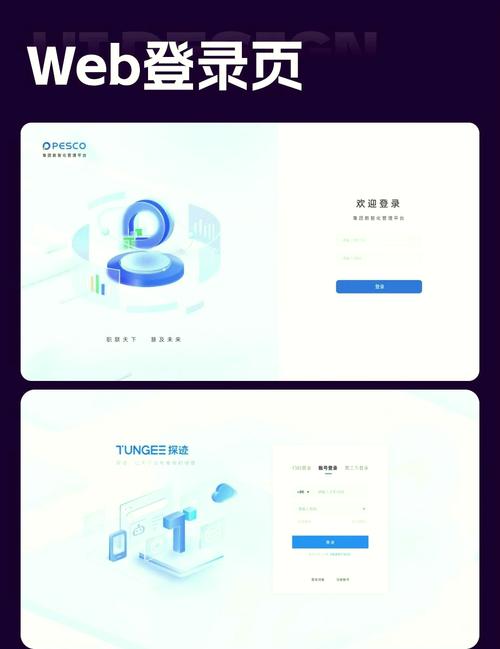
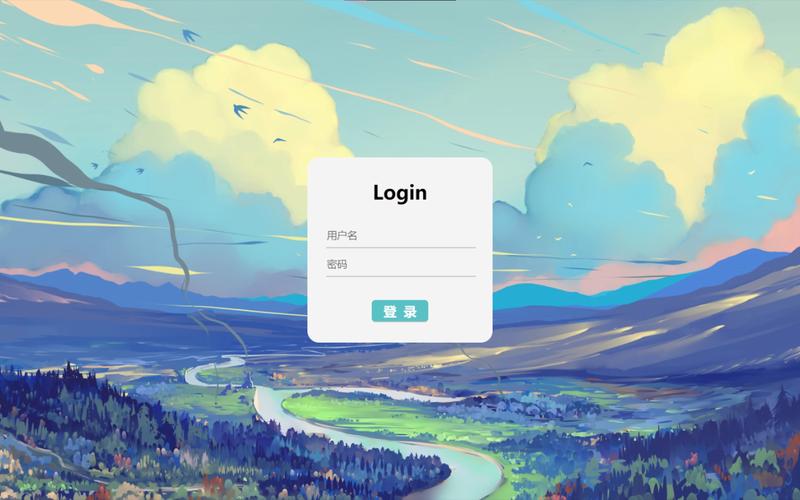
最终效果预览
这是一个静态页面,所以功能是模拟的,你可以看到漂亮的输入框、按钮和切换效果。
(图片来源网络,侵删)
第一步:创建完整的HTML文件
将下面的所有代码复制到一个文本编辑器中(如 VS Code, Sublime Text, 或者记事本),然后将其保存为 index.html 文件。注意:请确保文件后缀名是 .html 而不是 .txt。
<!DOCTYPE html>
<html lang="zh-CN">
<head>
    <meta charset="UTF-8">
    <meta name="viewport" content="width=device-width, initial-scale=1.0">学生个人主页 - 登录</title>
    <!-- 引入字体图标库 (Font Awesome) -->
    <link rel="stylesheet" href="https://cdnjs.cloudflare.com/ajax/libs/font-awesome/6.4.0/css/all.min.css">
    <style>
        /* --- 全局样式 --- */
        * {
            margin: 0;
            padding: 0;
            box-sizing: border-box;
            font-family: 'Segoe UI', Tahoma, Geneva, Verdana, sans-serif;
        }
        body {
            background: linear-gradient(135deg, #6a11cb 0%, #2575fc 100%);
            display: flex;
            justify-content: center;
            align-items: center;
            min-height: 100vh;
            padding: 20px;
        }
        /* --- 登录/注册容器 --- */
        .container {
            background-color: #ffffff;
            border-radius: 10px;
            box-shadow: 0 14px 28px rgba(0,0,0,0.25), 0 10px 10px rgba(0,0,0,0.22);
            position: relative;
            width: 100%;
            max-width: 400px;
            overflow: hidden;
        }
        .form-container {
            position: absolute;
            top: 0;
            height: 100%;
            transition: all 0.6s ease-in-out;
        }
        /* --- 登录表单 --- */
        .login-container {
            left: 0;
            width: 100%;
            z-index: 2;
        }
        .login-container form {
            background-color: #ffffff;
            display: flex;
            flex-direction: column;
            padding: 0 50px;
            height: 100%;
            justify-content: center;
            align-items: center;
            text-align: center;
        }
        .social-container {
            margin: 20px 0;
        }
        .social-container a {
            border: 1px solid #ddd;
            border-radius: 50%;
            display: inline-flex;
            justify-content: center;
            align-items: center;
            margin: 0 5px;
            height: 40px;
            width: 40px;
            transition: all 0.3s;
        }
        .social-container a:hover {
            border-color: #2575fc;
            color: #2575fc;
        }
        .input-field {
            background: #f1f1f1;
            border: none;
            padding: 12px 15px;
            margin: 8px 0;
            width: 100%;
            border-radius: 5px;
        }
        .input-field:focus {
            background: #e6e6e6;
            outline: none;
        }
        .btn {
            border: none;
            background: linear-gradient(135deg, #6a11cb 0%, #2575fc 100%);
            color: white;
            padding: 12px 20px;
            margin: 10px 0;
            cursor: pointer;
            border-radius: 5px;
            font-size: 16px;
            transition: transform 0.3s;
            width: 100%;
        }
        .btn:hover {
            transform: scale(1.05);
        }
        .forgot-password {
            color: #2575fc;
            font-size: 12px;
            text-decoration: none;
            margin-top: -15px;
            margin-bottom: 15px;
        }
        .forgot-password:hover {
            text-decoration: underline;
        }
        /* --- 注册表单 --- */
        .register-container {
            left: 0;
            width: 100%;
            opacity: 0;
            z-index: 1;
        }
        .register-container form {
            background-color: #ffffff;
            display: flex;
            flex-direction: column;
            padding: 0 50px;
            height: 100%;
            justify-content: center;
            align-items: center;
            text-align: center;
        }
        /* --- 切换面板 --- */
        .overlay-container {
            position: absolute;
            top: 0;
            left: 50%;
            width: 50%;
            height: 100%;
            overflow: hidden;
            transition: transform 0.6s ease-in-out;
            z-index: 100;
        }
        .overlay {
            background: linear-gradient(135deg, #f093fb 0%, #f5576c 100%);
            color: #ffffff;
            position: relative;
            left: -100%;
            height: 100%;
            width: 200%;
            transform: translateX(0);
            transition: transform 0.6s ease-in-out;
        }
        .overlay-panel {
            position: absolute;
            top: 0;
            height: 100%;
            width: 50%;
            display: flex;
            flex-direction: column;
            justify-content: center;
            align-items: center;
            padding: 40px;
            text-align: center;
        }
        .overlay-left {
            transform: translateX(0);
        }
        .overlay-right {
            right: 0;
            transform: translateX(0);
        }
        /* --- 切换按钮 --- */
        .container.right-panel-active .login-container {
            transform: translateX(100%);
        }
        .container.right-panel-active .register-container {
            transform: translateX(100%);
            opacity: 1;
            z-index: 5;
        }
        .container.right-panel-active .overlay-container {
            transform: translateX(-100%);
        }
        .container.right-panel-active .overlay-left {
            transform: translateX(20%);
        }
        .container.right-panel-active .overlay-right {
            transform: translateX(-20%);
        }
        /* --- 响应式设计 --- */
        @media screen and (max-width: 768px) {
            .container {
                width: 100%;
                max-width: 350px;
            }
            .overlay-container {
                width: 100%;
                left: 0;
            }
            .overlay {
                width: 200%;
            }
            .overlay-panel {
                width: 50%;
            }
            .container.right-panel-active .login-container,
            .container.right-panel-active .register-container {
                transform: translateX(-100%);
            }
            .container.right-panel-active .overlay-container {
                transform: translateX(50%);
            }
            .container.right-panel-active .overlay-left {
                transform: translateX(-10%);
            }
            .container.right-panel-active .overlay-right {
                transform: translateX(10%);
            }
        }
    </style>
</head>
<body>
    <div class="container" id="container">
        <!-- 登录表单 -->
        <div class="form-container login-container">
            <form action="#" method="post">
                <h2>欢迎回来</h2>
                <p>请登录您的账户</p>
                <div class="social-container">
                    <a href="#" class="social"><i class="fab fa-weixin"></i></a>
                    <a href="#" class="social"><i class="fab fa-qq"></i></a>
                    <a href="#" class="social"><i class="fab fa-github"></i></a>
                </div>
                <input type="text" class="input-field" placeholder="学号 / 用户名" required>
                <input type="password" class="input-field" placeholder="密码" required>
                <a href="#" class="forgot-password">忘记密码?</a>
                <button type="submit" class="btn">登录</button>
            </form>
        </div>
        <!-- 注册表单 -->
        <div class="form-container register-container">
            <form action="#" method="post">
                <h2>创建新账户</h2>
                <p>加入我们,开启精彩旅程</p>
                <input type="text" class="input-field" placeholder="姓名" required>
                <input type="text" class="input-field" placeholder="学号" required>
                <input type="email" class="input-field" placeholder="电子邮箱" required>
                <input type="password" class="input-field" placeholder="密码" required>
                <input type="password" class="input-field" placeholder="确认密码" required>
                <button type="submit" class="btn">注册</button>
            </form>
        </div>
        <!-- 切换面板 -->
        <div class="overlay-container">
            <div class="overlay">
                <div class="overlay-panel overlay-left">
                    <h2>已有账户?</h2>
                    <p>请使用您的学号和密码登录</p>
                    <button class="btn ghost" id="login">立即登录</button>
                </div>
                <div class="overlay-panel overlay-right">
                    <h2>还没有账户?</h2>
                    <p>注册后即可访问所有资源</p>
                    <button class="btn ghost" id="register">立即注册</button>
                </div>
            </div>
        </div>
    </div>
    <script>
        // 获取DOM元素
        const loginButton = document.getElementById('login');
        const registerButton = document.getElementById('register');
        const container = document.getElementById('container');
        // 点击“登录”按钮,显示登录表单
        loginButton.addEventListener('click', () => {
            container.classList.remove("right-panel-active");
        });
        // 点击“注册”按钮,显示注册表单
        registerButton.addEventListener('click', () => {
            container.classList.add("right-panel-active");
        });
    </script>
</body>
</html>
第二步:如何使用和修改
- 保存文件:将上述代码保存为
index.html文件。 - 用浏览器打开:直接用 Chrome, Firefox, Edge 等浏览器打开这个文件,你就能看到登录页面了。
- :
- 标题和文字:修改
<title>标签里的内容,以及<h2>,<p>等标签里的文字,比如把“欢迎回来”改成“欢迎登录”。 - 链接:
<form action="#" method="post">中的 是一个占位符,你需要把它改成你实际处理登录和注册逻辑的服务器脚本地址(login.php)。 - 颜色:修改 CSS 中的颜色值,背景渐变色
background: linear-gradient(135deg, #6a11cb 0%, #2575fc 100%);,你可以去 CSS渐变生成器 网站挑选你喜欢的颜色。 - 图标:这个页面使用了 Font Awesome 图标库,如果你想换图标,可以去官网查找并替换
<i>标签中的类名,<i class="fab fa-github"></i>换成<i class="fab fa-weibo"></i>。 - 社交媒体链接:
<a href="#">中的 需要替换成你的微信、QQ或GitHub的真实链接。
- 标题和文字:修改
第三步:如何让这个页面“工作”起来?
这个页面的登录和注册按钮只是视觉效果,点击后并不会真正地把数据发送到服务器,要让它真正工作,你需要:
- 后端服务器:你需要一个后端技术来处理数据,PHP, Node.js, Python (Django/Flask), Java (Spring) 等。
- 数据库:你需要一个数据库(如 MySQL, PostgreSQL, MongoDB)来存储用户信息(用户名、密码等)。
- 连接前后端:
- 修改
<form action="your_login_handler.php" method="post">。 - 在
your_login_handler.php文件中,编写代码来接收表单数据,验证用户名和密码是否与数据库中的记录匹配。 - 安全提示:永远不要在前端代码中直接写死数据库密码或以明文存储密码,密码应该在后端进行哈希(如使用
bcrypt)后再存储和比较。
- 修改
对于学生项目,可以先从简单的后端开始学习,比如使用 PHP 和 MySQL 是一个非常经典且容易上手的组合。
希望这个模板能帮助你快速开始你的个人网页项目!
(图片来源网络,侵删)

(图片来源网络,侵删)


