这个模板完全独立,包含了 HTML、CSS 和 JavaScript,具有以下特点:
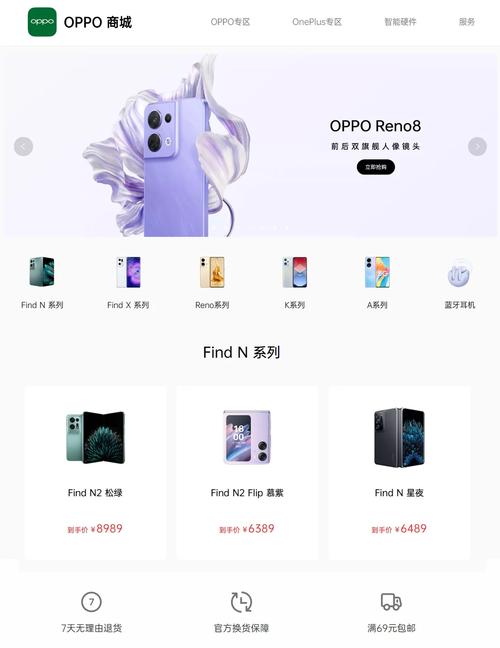
(图片来源网络,侵删)
- 现代简约设计:采用 OPPO 品牌常用的蓝白配色、圆角卡片和干净大方的布局。
- 响应式布局:在电脑、平板和手机上都能完美显示。
- 交互体验流畅:包含表单验证、密码显示/隐藏、登录/注册页面平滑切换等功能。
- 代码结构清晰:HTML 语义化,CSS 使用 Flexbox 布局,易于理解和修改。
最终效果预览
第一步:HTML 代码 (index.html)
这是页面的骨架,包含了登录和注册两个表单,并通过一个容器来切换它们。
<!DOCTYPE html>
<html lang="zh-CN">
<head>
    <meta charset="UTF-8">
    <meta name="viewport" content="width=device-width, initial-scale=1.0">OPPO 账户 - 登录/注册</title>
    <link rel="stylesheet" href="style.css">
    <link rel="stylesheet" href="https://cdnjs.cloudflare.com/ajax/libs/font-awesome/6.4.0/css/all.min.css">
</head>
<body>
    <div class="container">
        <div class="forms-container">
            <!-- 登录表单 -->
            <div class="sign-in-signup">
                <form action="#" class="sign-in-form">
                    <h2 class="title">欢迎回来</h2>
                    <div class="input-field">
                        <i class="fas fa-user"></i>
                        <input type="text" placeholder="手机号/邮箱/OPPO ID" required>
                    </div>
                    <div class="input-field">
                        <i class="fas fa-lock"></i>
                        <input type="password" placeholder="密码" id="login-password" required>
                        <i class="fas fa-eye-slash toggle-password" data-target="login-password"></i>
                    </div>
                    <div class="form-options">
                        <label>
                            <input type="checkbox">
                            <span>记住我</span>
                        </label>
                        <a href="#" class="forgot-password">忘记密码?</a>
                    </div>
                    <button type="submit" class="btn solid">登录</button>
                    <p class="social-text">或使用以下方式登录</p>
                    <div class="social-media">
                        <a href="#" class="social-icon">
                            <i class="fab fa-weixin"></i>
                        </a>
                        <a href="#" class="social-icon">
                            <i class="fab fa-qq"></i>
                        </a>
                        <a href="#" class="social-icon">
                            <i class="fab fa-weibo"></i>
                        </a>
                    </div>
                </form>
                <!-- 注册表单 -->
                <form action="#" class="sign-up-form">
                    <h2 class="title">创建账户</h2>
                    <div class="input-field">
                        <i class="fas fa-user"></i>
                        <input type="text" placeholder="昵称" required>
                    </div>
                    <div class="input-field">
                        <i class="fas fa-envelope"></i>
                        <input type="email" placeholder="邮箱地址" required>
                    </div>
                    <div class="input-field">
                        <i class="fas fa-lock"></i>
                        <input type="password" placeholder="设置密码" id="register-password" required>
                        <i class="fas fa-eye-slash toggle-password" data-target="register-password"></i>
                    </div>
                    <div class="input-field">
                        <i class="fas fa-lock"></i>
                        <input type="password" placeholder="确认密码" id="confirm-password" required>
                        <i class="fas fa-eye-slash toggle-password" data-target="confirm-password"></i>
                    </div>
                    <div class="form-options">
                        <label>
                            <input type="checkbox" required>
                            <span>我已阅读并同意 <a href="#">《用户协议》</a> 和 <a href="#">《隐私政策》</a></span>
                        </label>
                    </div>
                    <button type="submit" class="btn solid">注册</button>
                </form>
            </div>
        </div>
        <div class="panels-container">
            <div class="panel left-panel">
                <div class="content">
                    <h3>已有 OPPO 账户?</h3>
                    <p>立即登录,探索更多精彩功能与专属服务。</p>
                    <button class="btn transparent" id="sign-in-btn">登录</button>
                </div>
                <img src="https://i.postimg.cc/8c4nLc7x/undraw-welcome.svg" class="image" alt="登录插图">
            </div>
            <div class="panel right-panel">
                <div class="content">
                    <h3>还没有 OPPO 账户?</h3>
                    <p>加入我们,开启智能生活新体验,享受会员专属福利。</p>
                    <button class="btn transparent" id="sign-up-btn">注册</button>
                </div>
                <img src="https://i.postimg.cc/5tW8jx9d/undraw-sign-up.svg" class="image" alt="注册插图">
            </div>
        </div>
    </div>
    <script src="script.js"></script>
</body>
</html>
第二步:CSS 代码 (style.css)
这是页面的样式表,定义了所有视觉元素,包括颜色、字体、布局和动画。
/* --- 全局样式 --- */
@import url('https://fonts.googleapis.com/css2?family=Poppins:wght@300;400;500;600;700&display=swap');
* {
    margin: 0;
    padding: 0;
    box-sizing: border-box;
    font-family: 'Poppins', sans-serif;
}
body {
    background: #f0f2f5; /* OPPO 风格的浅灰色背景 */
    min-height: 100vh;
    display: flex;
    align-items: center;
    justify-content: center;
}
.container {
    position: relative;
    width: 100%;
    max-width: 1000px;
    min-height: 600px;
    background: #fff;
    border-radius: 20px;
    box-shadow: 0 15px 35px rgba(0, 0, 0, 0.1);
    overflow: hidden;
}
/* --- 表单容器 --- */
.forms-container {
    position: absolute;
    width: 50%;
    height: 100%;
    top: 0;
}
.sign-in-signup {
    position: absolute;
    top: 50%;
    left: 50%;
    transform: translate(-50%, -50%);
    width: 100%;
    padding: 0 40px;
    transition: 1s 0.7s ease-in-out;
}
form {
    display: flex;
    flex-direction: column;
    gap: 25px;
}
/* --- 输入框样式 --- */
.input-field {
    position: relative;
    border-bottom: 2px solid #e1e1e1;
    margin-bottom: 10px;
}
.input-field i {
    position: absolute;
    top: 50%;
    left: 10px;
    transform: translateY(-50%);
    color: #999;
    font-size: 18px;
}
.input-field input {
    width: 100%;
    padding: 10px 10px 10px 40px;
    font-size: 16px;
    border: none;
    background: none;
    outline: none;
    transition: 0.3s;
}
.input-field input:focus {
    border-bottom-color: #1a73e8; /* OPPO 蓝 */
}
.toggle-password {
    position: absolute;
    top: 50%;
    right: 10px;
    transform: translateY(-50%);
    cursor: pointer;
    color: #999;
    font-size: 18px;
}
/* --- 标题和按钮 --- */{
    font-size: 28px;
    font-weight: 600;
    color: #333;
    text-align: center;
}
.btn {
    width: 100%;
    padding: 12px;
    background: #1a73e8; /* OPPO 蓝 */
    color: #fff;
    border: none;
    border-radius: 50px;
    font-size: 16px;
    font-weight: 500;
    cursor: pointer;
    transition: background 0.3s;
}
.btn:hover {
    background: #155ab6;
}
.btn.transparent {
    background: transparent;
    border: 2px solid #1a73e8;
    color: #1a73e8;
    margin-top: 15px;
}
.btn.transparent:hover {
    background: rgba(26, 115, 232, 0.1);
}
/* --- 表单选项 --- */
.form-options {
    display: flex;
    justify-content: space-between;
    align-items: center;
    font-size: 14px;
}
.form-options label {
    display: flex;
    align-items: center;
    gap: 5px;
    color: #555;
}
.form-options a {
    color: #1a73e8;
    text-decoration: none;
}
.form-options a:hover {
    text-decoration: underline;
}
/* --- 社交媒体登录 --- */
.social-text {
    text-align: center;
    color: #999;
    margin: 15px 0;
}
.social-media {
    display: flex;
    justify-content: center;
    gap: 15px;
}
.social-icon {
    width: 40px;
    height: 40px;
    display: flex;
    align-items: center;
    justify-content: center;
    background: #f0f2f5;
    border-radius: 50%;
    color: #555;
    font-size: 20px;
    transition: background 0.3s;
}
.social-icon:hover {
    background: #e1e1e1;
}
/* --- 面板样式 --- */
.panels-container {
    position: absolute;
    width: 50%;
    height: 100%;
    top: 0;
    right: 0;
    display: flex;
}
.panel {
    display: flex;
    flex-direction: column;
    align-items: center;
    justify-content: center;
    padding: 40px 30px;
    text-align: center;
    color: #fff;
}
.panel h3 {
    font-size: 24px;
    font-weight: 600;
    margin-bottom: 15px;
}
.panel p {
    font-size: 15px;
    line-height: 1.6;
    margin-bottom: 20px;
}
.panel.left-panel {
    background: #1a73e8; /* OPPO 蓝 */
    left: 0;
}
.panel.right-panel {
    background: #fff;
    color: #333;
    right: 0;
}
.panel.right-panel .btn.transparent {
    background: #1a73e8;
    color: #fff;
    border: none;
}
.panel.right-panel .btn.transparent:hover {
    background: #155ab6;
}
.panel .image {
    width: 100%;
    max-width: 300px;
    margin-bottom: 20px;
}
/* --- 切换动画 --- */
.container.sign-up-mode .sign-in-signup {
    transform: translateX(-100%);
}
.container.sign-up-mode .panels-container {
    transform: translateX(100%);
}
/* --- 响应式设计 --- */
@media (max-width: 900px) {
    .container, .panels-container {
        width: 100%;
        max-width: 100%;
    }
    .forms-container {
        width: 100%;
    }
    .sign-in-signup {
        width: 100%;
        padding: 0 30px;
    }
    .panels-container {
        display: none;
    }
}
第三步:JavaScript 代码 (script.js)
这是页面的交互逻辑,负责处理登录/注册页面的切换和密码显示/隐藏功能。
const sign_in_btn = document.querySelector("#sign-in-btn");
const sign_up_btn = document.querySelector("#sign-up-btn");
const container = document.querySelector(".container");
// 切换到登录页面
sign_in_btn.addEventListener("click", () => {
    container.classList.remove("sign-up-mode");
});
// 切换到注册页面
sign_up_btn.addEventListener("click", () => {
    container.classList.add("sign-up-mode");
});
// 密码显示/隐藏功能
const togglePasswordButtons = document.querySelectorAll('.toggle-password');
togglePasswordButtons.forEach(button => {
    button.addEventListener('click', () => {
        const targetId = button.getAttribute('data-target');
        const passwordInput = document.getElementById(targetId);
        if (passwordInput.type === 'password') {
            passwordInput.type = 'text';
            button.classList.remove('fa-eye-slash');
            button.classList.add('fa-eye');
        } else {
            passwordInput.type = 'password';
            button.classList.remove('fa-eye');
            button.classList.add('fa-eye-slash');
        }
    });
});
// 注册表单提交时的密码确认检查
const signUpForm = document.querySelector('.sign-up-form');
signUpForm.addEventListener('submit', (event) => {
    const password = document.getElementById('register-password').value;
    const confirmPassword = document.getElementById('confirm-password').value;
    if (password !== confirmPassword) {
        event.preventDefault(); // 阻止表单提交
        alert('两次输入的密码不一致,请重新输入!');
        // 可以在这里添加更友好的提示,比如在页面上显示错误信息
    }
});
如何使用
- 创建文件:在您的项目文件夹中创建三个文件:
index.html、style.css和script.js。 - 复制代码:将上面提供的代码分别粘贴到对应的文件中。
- 添加资源:
style.css中的@import url('https://fonts.googleapis.com/css2?family=Poppins:wght@300;400;500;600;700&display=swap');引入了 Google Fonts 的字体,您需要确保网络连接正常。style.css和script.js中使用了外部图片链接(img src="..."),您也可以将这些图片下载到本地并修改路径。script.js中使用了 Font Awesome 图标库,用于显示微信、QQ等图标和眼睛图标,确保网络连接正常或下载到本地使用。
- 打开页面:用浏览器打开
index.html文件,即可看到效果。
您可以根据实际需求,对颜色、文案、布局等进行微调,使其更符合您的具体要求。

(图片来源网络,侵删)


