基础侧边栏菜单
这是最常见、最经典的一种布局,适合大多数管理后台、个人项目等。
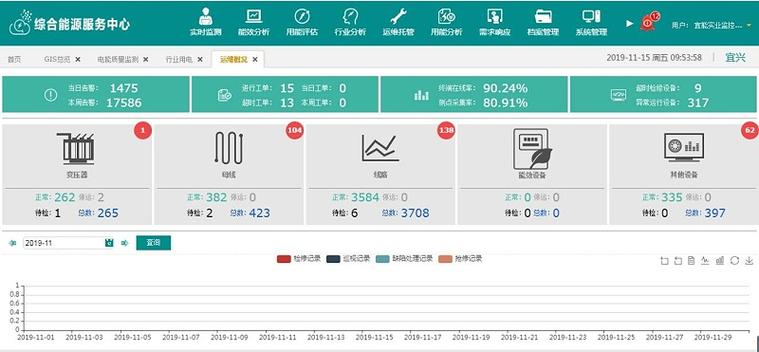
(图片来源网络,侵删)
特点:
- 固定在左侧。
- 清晰的层级结构。
- 简洁直观。
效果预览: [此处应有图片,描述一个固定在左侧的菜单,右侧是内容区域]
HTML 结构:
<!DOCTYPE html>
<html lang="zh-CN">
<head>
    <meta charset="UTF-8">
    <meta name="viewport" content="width=device-width, initial-scale=1.0">基础侧边栏菜单</title>
    <link rel="stylesheet" href="https://cdnjs.cloudflare.com/ajax/libs/font-awesome/6.4.0/css/all.min.css">
    <style>
        /* 全局样式和布局 */
        * {
            margin: 0;
            padding: 0;
            box-sizing: border-box;
        }
        body {
            font-family: 'Segoe UI', Tahoma, Geneva, Verdana, sans-serif;
            background-color: #f5f5f5;
            display: flex;
        }
        /* 侧边栏样式 */
        .sidebar {
            width: 250px;
            background-color: #2c3e50;
            color: #ecf0f1;
            height: 100vh;
            padding-top: 20px;
            position: fixed; /* 固定定位 */
        }
        .sidebar .logo {
            text-align: center;
            font-size: 24px;
            font-weight: bold;
            padding: 20px 0;
            border-bottom: 1px solid #34495e;
            margin-bottom: 20px;
        }
        /* 菜单项样式 */
        .menu-item {
            padding: 15px 20px;
            cursor: pointer;
            transition: background-color 0.3s ease;
            display: flex;
            align-items: center;
            gap: 10px;
        }
        .menu-item:hover {
            background-color: #34495e;
        }
        .menu-item i {
            width: 20px;
            text-align: center;
        }
        /* 内容区域样式 */
        .content {
            margin-left: 250px; /* 与侧边栏宽度保持一致 */
            padding: 20px;
            flex: 1;
        }
        .content h1 {
            color: #2c3e50;
            margin-bottom: 20px;
        }
        .content p {
            line-height: 1.6;
            color: #555;
        }
    </style>
</head>
<body>
    <!-- 侧边栏 -->
    <div class="sidebar">
        <div class="logo">我的项目</div>
        <ul>
            <li class="menu-item">
                <i class="fas fa-home"></i>
                <span>首页</span>
            </li>
            <li class="menu-item">
                <i class="fas fa-chart-bar"></i>
                <span>数据分析</span>
            </li>
            <li class="menu-item">
                <i class="fas fa-users"></i>
                <span>用户管理</span>
            </li>
            <li class="menu-item">
                <i class="fas fa-cog"></i>
                <span>系统设置</span>
            </li>
        </ul>
    </div>
    <!-- 主内容区 -->
    <div class="content">
        <h1>欢迎使用</h1>
        <p>请从左侧菜单选择功能模块。</p>
    </div>
</body>
</html>
带二级菜单的折叠侧边栏
当菜单项较多时,支持折叠的二级菜单能让界面更整洁。
特点:
- 支持一级菜单的展开/折叠。
- 菜单层级更丰富。
- 交互性更强。
效果预览: [此处应有图片,描述一个可以点击“用户管理”展开“用户列表”和“角色权限”的菜单]
HTML 结构:
<!DOCTYPE html>
<html lang="zh-CN">
<head>
    <meta charset="UTF-8">
    <meta name="viewport" content="width=device-width, initial-scale=1.0">带二级菜单的折叠侧边栏</title>
    <link rel="stylesheet" href="https://cdnjs.cloudflare.com/ajax/libs/font-awesome/6.4.0/css/all.min.css">
    <style>
        /* 基础样式与模板一类似,这里只添加新增样式 */
        body, * {
            margin: 0;
            padding: 0;
            box-sizing: border-box;
        }
        body {
            font-family: 'Segoe UI', Tahoma, Geneva, Verdana, sans-serif;
            background-color: #f5f5f5;
            display: flex;
        }
        .sidebar {
            width: 250px;
            background-color: #2c3e50;
            color: #ecf0f1;
            height: 100vh;
            padding-top: 20px;
            position: fixed;
        }
        .sidebar .logo {
            text-align: center;
            font-size: 24px;
            font-weight: bold;
            padding: 20px 0;
            border-bottom: 1px solid #34495e;
            margin-bottom: 20px;
        }
        .menu-item {
            padding: 15px 20px;
            cursor: pointer;
            transition: background-color 0.3s ease;
            display: flex;
            align-items: center;
            justify-content: space-between; /* 为了让箭头靠右 */
        }
        .menu-item:hover {
            background-color: #34495e;
        }
        .menu-item i {
            width: 20px;
        }
        .submenu {
            max-height: 0; /* 初始高度为0,实现折叠效果 */
            overflow: hidden;
            background-color: #34495e;
            transition: max-height 0.3s ease-out;
        }
        .submenu .menu-item {
            padding-left: 50px; /* 二级菜单缩进 */
            font-size: 14px;
        }
        .submenu.active {
            max-height: 200px; /* 展开时设置一个足够大的高度 */
        }
        .content {
            margin-left: 250px;
            padding: 20px;
            flex: 1;
        }
        .content h1 {
            color: #2c3e50;
        }
    </style>
</head>
<body>
    <div class="sidebar">
        <div class="logo">我的项目</div>
        <ul>
            <li>
                <div class="menu-item">
                    <span><i class="fas fa-home"></i> 首页</span>
                </div>
            </li>
            <li>
                <div class="menu-item" onclick="toggleSubmenu(this)">
                    <span><i class="fas fa-users"></i> 用户管理</span>
                    <i class="fas fa-chevron-down"></i>
                </div>
                <ul class="submenu">
                    <li><div class="menu-item"><span>用户列表</span></div></li>
                    <li><div class="menu-item"><span>角色权限</span></div></li>
                </ul>
            </li>
            <li>
                <div class="menu-item" onclick="toggleSubmenu(this)">
                    <span><i class="fas fa-chart-bar"></i> 数据分析</span>
                    <i class="fas fa-chevron-down"></i>
                </div>
                <ul class="submenu">
                    <li><div class="menu-item"><span>销售报表</span></div></li>
                    <li><div class="menu-item"><span>用户行为</span></div></li>
                </ul>
            </li>
            <li>
                <div class="menu-item">
                    <span><i class="fas fa-cog"></i> 系统设置</span>
                </div>
            </li>
        </ul>
    </div>
    <div class="content">
        <h1>带二级菜单的侧边栏</h1>
        <p>点击“用户管理”或“数据分析”可以展开二级菜单。</p>
    </div>
    <script>
        function toggleSubmenu(element) {
            const submenu = element.nextElementSibling;
            const icon = element.querySelector('.fa-chevron-down');
            // 切换 active 类
            submenu.classList.toggle('active');
            // 旋转箭头图标
            if (submenu.classList.contains('active')) {
                icon.style.transform = 'rotate(180deg)';
            } else {
                icon.style.transform = 'rotate(0deg)';
            }
        }
    </script>
</body>
</html>
顶部导航栏
为主、菜单项较少的网站,如博客、企业官网等。
特点:
- 水平布局,节省垂直空间。
- 通常与 Logo 和用户信息结合。
- 适合响应式设计。
效果预览: [此处应有图片,描述一个位于页面顶部的水平菜单]
HTML 结构:
<!DOCTYPE html>
<html lang="zh-CN">
<head>
    <meta charset="UTF-8">
    <meta name="viewport" content="width=device-width, initial-scale=1.0">顶部导航栏</title>
    <link rel="stylesheet" href="https://cdnjs.cloudflare.com/ajax/libs/font-awesome/6.4.0/css/all.min.css">
    <style>
        body {
            margin: 0;
            font-family: 'Segoe UI', Tahoma, Geneva, Verdana, sans-serif;
            background-color: #f4f4f4;
        }
        /* 顶部导航栏样式 */
        .navbar {
            background-color: #333;
            overflow: hidden; /* 防止子元素溢出 */
            display: flex;
            justify-content: space-between;
            align-items: center;
            padding: 0 20px;
        }
        .navbar .logo {
            color: white;
            font-size: 24px;
            font-weight: bold;
            padding: 15px 0;
            text-decoration: none;
        }
        /* 导航链接容器 */
        .navbar-links {
            display: flex;
        }
        /* 导航链接样式 */
        .navbar-links a {
            display: block;
            color: white;
            text-align: center;
            padding: 20px 20px;
            text-decoration: none;
            transition: background-color 0.3s;
        }
        .navbar-links a:hover {
            background-color: #555;
        }
        /* 用户信息区域 */
        .user-info {
            color: white;
            padding: 20px;
            display: flex;
            align-items: center;
            gap: 10px;
        }
        /* 内容区域 */
        .content {
            padding: 20px;
        }
    </style>
</head>
<body>
    <!-- 顶部导航栏 -->
    <nav class="navbar">
        <a href="#" class="logo">Logo</a>
        <div class="navbar-links">
            <a href="#home">首页</a>
            <a href="#about">关于我们</a>
            <a href="#services">服务</a>
            <a href="#contact">联系我们</a>
        </div>
        <div class="user-info">
            <i class="fas fa-user-circle"></i>
            <span>用户中心</span>
        </div>
    </nav>
    <!-- 主内容区 -->
    <div class="content">
        <h1>欢迎访问我们的网站</h1>
        <p>这是一个使用顶部导航栏的示例。</p>
    </div>
</body>
</html>
响应式侧边栏(移动端友好)
结合了侧边栏和顶部导航,在桌面端显示侧边栏,在移动端自动切换为汉堡菜单。
特点:
- 自适应不同屏幕尺寸。
- 移动端通过汉堡菜单触发侧边栏。
- 用户体验更好。
效果预览: [此处应有图片,左侧是桌面端,右侧是移动端点击汉堡菜单后滑出的侧边栏]
HTML 结构:
<!DOCTYPE html>
<html lang="zh-CN">
<head>
    <meta charset="UTF-8">
    <meta name="viewport" content="width=device-width, initial-scale=1.0">响应式侧边栏</title>
    <link rel="stylesheet" href="https://cdnjs.cloudflare.com/ajax/libs/font-awesome/6.4.0/css/all.min.css">
    <style>
        /* 全局样式 */
        * {
            margin: 0;
            padding: 0;
            box-sizing: border-box;
        }
        body {
            font-family: 'Segoe UI', Tahoma, Geneva, Verdana, sans-serif;
            background-color: #f5f5f5;
        }
        /* 顶部导航栏(移动端和桌面端都有) */
        .navbar {
            background-color: #2c3e50;
            color: white;
            padding: 10px 20px;
            display: flex;
            justify-content: space-between;
            align-items: center;
        }
        .navbar .menu-toggle {
            display: block; /* 默认显示,用于移动端 */
            font-size: 24px;
            cursor: pointer;
        }
        .navbar .logo {
            font-size: 20px;
            font-weight: bold;
        }
        /* 侧边栏样式 */
        .sidebar {
            position: fixed;
            top: 0;
            left: -250px; /* 默认隐藏在屏幕外 */
            width: 250px;
            height: 100vh;
            background-color: #2c3e50;
            color: #ecf0f1;
            transition: left 0.3s ease;
            z-index: 1000;
            padding-top: 60px; /* 给顶部导航栏留出空间 */
        }
        .sidebar.active {
            left: 0; /* 激活时滑入 */
        }
        .sidebar .menu-item {
            padding: 15px 20px;
            cursor: pointer;
            transition: background-color 0.3s ease;
            display: flex;
            align-items: center;
            gap: 10px;
        }
        .sidebar .menu-item:hover {
            background-color: #34495e;
        }
        /* 遮罩层 */
        .overlay {
            position: fixed;
            top: 0;
            left: 0;
            width: 100%;
            height: 100%;
            background-color: rgba(0, 0, 0, 0.5);
            z-index: 999;
            display: none; /* 默认隐藏 */
        }
        .overlay.active {
            display: block;
        }
        /* 内容区域 */
        .content {
            padding: 20px;
            margin-top: 50px; /* 避免内容被固定的顶部导航栏遮挡 */
        }
        /* 响应式设计:桌面端 */
        @media (min-width: 768px) {
            .menu-toggle {
                display: none; /* 桌面端隐藏汉堡菜单 */
            }
            .sidebar {
                left: 0; /* 桌面端默认显示 */
                top: 50px; /* 顶部导航栏高度 */
                height: calc(100vh - 50px); /* 减去顶部导航栏高度 */
                padding-top: 0;
                transition: none; /* 桌面端不需要滑入滑出动画 */
            }
            .overlay {
                display: none; /* 桌面端不需要遮罩层 */
            }
            .content {
                margin-top: 0;
            }
        }
    </style>
</head>
<body>
    <!-- 顶部导航栏 -->
    <nav class="navbar">
        <div class="logo">我的项目</div>
        <i class="fas fa-bars menu-toggle" onclick="toggleSidebar()"></i>
    </nav>
    <!-- 遮罩层 -->
    <div class="overlay" onclick="closeSidebar()"></div>
    <!-- 侧边栏 -->
    <div class="sidebar">
        <ul>
            <li class="menu-item">
                <i class="fas fa-home"></i>
                <span>首页</span>
            </li>
            <li class="menu-item">
                <i class="fas fa-chart-bar"></i>
                <span>数据分析</span>
            </li>
            <li class="menu-item">
                <i class="fas fa-users"></i>
                <span>用户管理</span>
            </li>
            <li class="menu-item">
                <i class="fas fa-cog"></i>
                <span>系统设置</span>
            </li>
        </ul>
    </div>
    <!-- 主内容区 -->
    <div class="content">
        <h1>响应式侧边栏</h1>
        <p>在桌面端,侧边栏会一直显示,在移动端,点击左上角的菜单图标来打开侧边栏。</p>
    </div>
    <script>
        function toggleSidebar() {
            const sidebar = document.querySelector('.sidebar');
            const overlay = document.querySelector('.overlay');
            sidebar.classList.toggle('active');
            overlay.classList.toggle('active');
        }
        function closeSidebar() {
            const sidebar = document.querySelector('.sidebar');
            const overlay = document.querySelector('.overlay');
            sidebar.classList.remove('active');
            overlay.classList.remove('active');
        }
    </script>
</body>
</html>
如何选择和使用这些模板?
- 明确需求:首先确定你的项目是哪种类型?是后台管理系统(推荐模板一或二),还是展示型网站(推荐模板三),或者需要兼顾PC和移动端(推荐模板四)。
- 复制代码:选择一个最符合你需求的模板,将完整的 HTML、CSS 和 JavaScript 代码复制到你的文件中。
- 自定义修改:
- Logo 和文字:修改
.logo和菜单项中的<span>文本。 - 颜色和字体:在
<style>标签中修改background-color,color,font-family等属性来匹配你的品牌风格。 - 图标:使用
Font Awesome的类名(如fas fa-home)来更换图标,或者替换为你自己的图标文件。 - 功能:如果需要添加新的菜单项,只需复制
<li class="menu-item">...</li>结构并修改其内容即可,对于二级菜单,复制整个<li>...</li>结构并嵌套在另一个<li>内部。
- Logo 和文字:修改
这些模板为你提供了一个坚实的基础,你可以在此基础上进行二次开发,添加更复杂的功能,如路由跳转、权限控制等。


