基础单选框
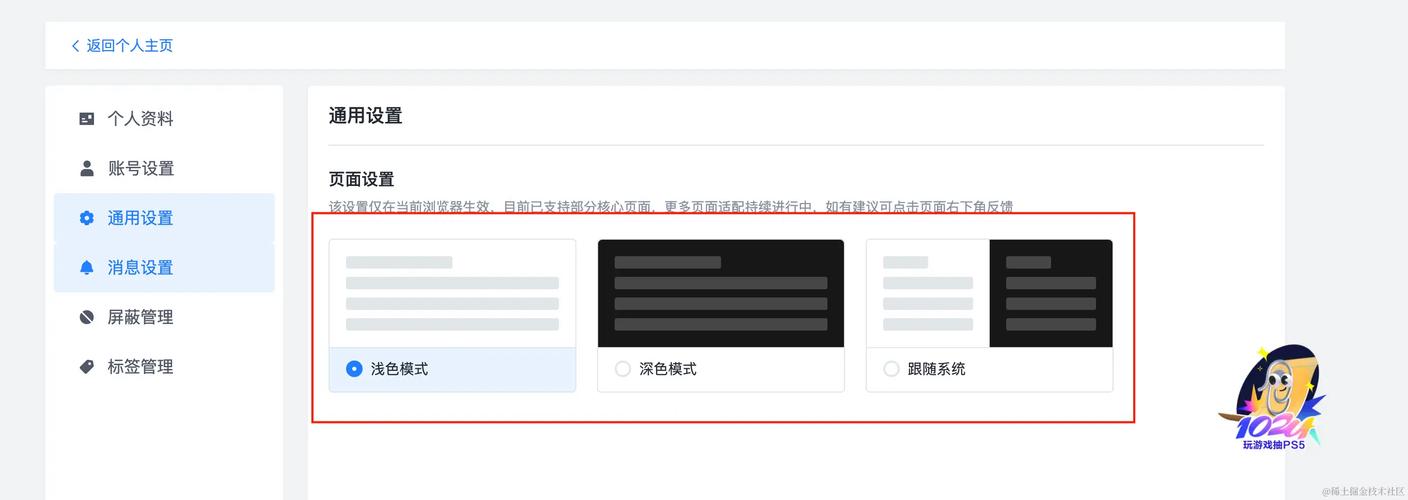
这是最基本、最标准的单选框实现,适用于简单的表单。
(图片来源网络,侵删)
特点:
- 使用
<input type="radio">。 - 通过
name属性将单选框分组,确保同一组内只能选中一个。 - 使用
value属性定义选中后提交的值。 - 使用
id和<label>的for属性关联,点击标签文字也能选中单选框。
代码:
<form>
  <fieldset>
    <legend>请选择您的性别:</legend>
    <!-- 单选框组 -->
    <div>
      <input type="radio" id="male" name="gender" value="male">
      <label for="male">男</label>
    </div>
    <div>
      <input type="radio" id="female" name="gender" value="female">
      <label for="female">女</label>
    </div>
    <div>
      <input type="radio" id="other" name="gender" value="other">
      <label for="other">其他</label>
    </div>
  </fieldset>
</form>
说明:
name="gender":这三个单选框属于同一个组,浏览器会确保它们中只有一个被选中。id="male":唯一的标识符。<label for="male">:for属性的值与单选框的id相同,建立了关联,这是提升用户体验和无障碍访问的关键。checked:如果你希望默认选中某个选项,可以加上这个属性,<input type="radio" id="male" name="gender" value="male" checked>。
带样式的单选框(水平排列)
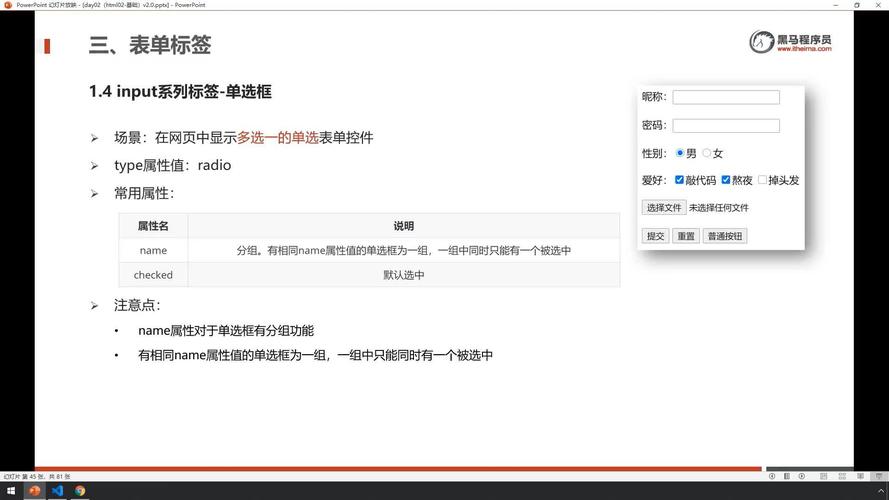
在基础之上,通过 CSS 让单选框水平排列,并增加一些间距,使其更美观。
(图片来源网络,侵删)
特点:
- 使用 Flexbox 布局轻松实现水平排列。
- 增加外边距,让选项之间有间隔。
- 保持无障碍访问性。
代码:
<!DOCTYPE html>
<html lang="zh-CN">
<head>
  <meta charset="UTF-8">
  <meta name="viewport" content="width=device-width, initial-scale=1.0">水平排列的单选框</title>
  <style>
    /* 基础样式 */
    body {
      font-family: sans-serif;
      padding: 20px;
    }
    /* 使用 Flexbox 容器 */
    .radio-group {
      display: flex;
      gap: 20px; /* 选项之间的间距 */
      align-items: center;
    }
    /* 单选框和标签的容器 */
    .radio-option {
      display: flex;
      align-items: center;
    }
    /* 标签样式 */
    .radio-option label {
      margin-left: 5px; /* 单选框和文字之间的间距 */
      cursor: pointer;
    }
  </style>
</head>
<body>
  <h2>请选择您的会员等级:</h2>
  <form>
    <div class="radio-group">
      <div class="radio-option">
        <input type="radio" id="vip1" name="membership" value="vip1">
        <label for="vip1">普通会员</label>
      </div>
      <div class="radio-option">
        <input type="radio" id="vip2" name="membership" value="vip2">
        <label for="vip2">白银会员</label>
      </div>
      <div class="radio-option">
        <input type="radio" id="vip3" name="membership" value="vip3" checked>
        <label for="vip3">黄金会员</label>
      </div>
    </div>
  </form>
</body>
</html>
自定义样式的单选框(美化外观)
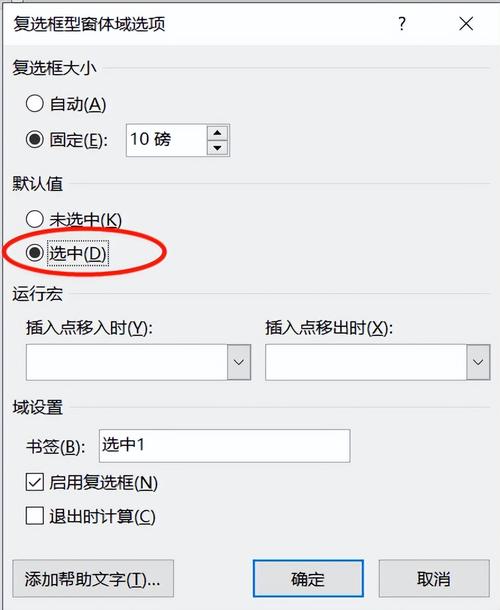
原生单选框样式较难定制,我们可以利用 checked 伪类和 :before 或 :after 伪元素来创建完全自定义样式的单选框,例如卡片式选择。
特点:
(图片来源网络,侵删)
- 完全隐藏原生单选框。
- 使用一个
<div>作为自定义单选框的外观。 - 通过 CSS 的
checked伪类来控制选中状态的样式变化。 - 使用
has()选择器(现代浏览器支持)可以更方便地关联,但这里使用 兄弟选择器以获得更好的兼容性。
代码:
<!DOCTYPE html>
<html lang="zh-CN">
<head>
  <meta charset="UTF-8">
  <meta name="viewport" content="width=device-width, initial-scale=1.0">自定义样式的单选框</title>
  <style>
    body {
      font-family: sans-serif;
      padding: 20px;
      background-color: #f4f4f4;
    }
    .radio-container {
      display: flex;
      gap: 20px;
    }
    /* 隐藏原生单选框 */
    .radio-option input[type="radio"] {
      display: none;
    }
    /* 自定义单选框的卡片样式 */
    .radio-card {
      position: relative;
      padding: 20px;
      border: 2px solid #ccc;
      border-radius: 8px;
      cursor: pointer;
      background-color: #fff;
      transition: all 0.3s ease;
      min-width: 150px;
      text-align: center;
    }
    /* 选中状态的样式 */
    .radio-option input[type="radio"]:checked + .radio-card {
      border-color: #007bff;
      background-color: #e7f1ff;
      box-shadow: 0 0 10px rgba(0, 123, 255, 0.2);
    }
    /* 选中状态下的图标 */
    .radio-card::after {
      content: '✓';
      position: absolute;
      top: 5px;
      right: 10px;
      font-size: 20px;
      color: #007bff;
      opacity: 0; /* 默认隐藏 */
    }
    /* 选中时显示图标 */
    .radio-option input[type="radio"]:checked + .radio-card::after {
      opacity: 1;
    }
    .radio-card label {
      cursor: pointer;
      font-weight: bold;
    }
  </style>
</head>
<body>
  <h2>请选择您的支付方式:</h2>
  <form>
    <div class="radio-container">
      <div class="radio-option">
        <input type="radio" id="alipay" name="payment" value="alipay">
        <div class="radio-card">
          <label for="alipay">支付宝</label>
        </div>
      </div>
      <div class="radio-option">
        <input type="radio" id="wechat" name="payment" value="wechat" checked>
        <div class="radio-card">
          <label for="wechat">微信支付</label>
        </div>
      </div>
      <div class="radio-option">
        <input type="radio" id="card" name="payment" value="card">
        <div class="radio-card">
          <label for="card">银行卡</label>
        </div>
      </div>
    </div>
  </form>
</body>
</html>
与 JavaScript 交互的单选框
展示如何通过 JavaScript 获取用户选择的值,并做出响应。
特点:
- 使用 JavaScript 监听
change事件。 - 当用户选择时,在页面上显示选中的值。
- 演示了如何获取
value和label文本。
代码:
<!DOCTYPE html>
<html lang="zh-CN">
<head>
  <meta charset="UTF-8">
  <meta name="viewport" content="width=device-width, initial-scale=1.0">JavaScript 交互的单选框</title>
  <style>
    body { font-family: sans-serif; padding: 20px; }
    .radio-group { margin-bottom: 20px; }
    #result {
      padding: 15px;
      border: 1px solid #ddd;
      border-radius: 5px;
      background-color: #f9f9f9;
    }
  </style>
</head>
<body>
  <h2>请选择您最喜欢的编程语言:</h2>
  <form class="radio-group">
    <div>
      <input type="radio" id="js" name="language" value="JavaScript">
      <label for="js">JavaScript</label>
    </div>
    <div>
      <input type="radio" id="py" name="language" value="Python">
      <label for="py">Python</label>
    </div>
    <div>
      <input type="radio" id="java" name="language" value="Java">
      <label for="java">Java</label>
    </div>
  </form>
  <div id="result">
    <p>您的选择是:<strong id="output">尚未选择</strong></p>
  </div>
  <script>
    // 获取所有单选框
    const radioButtons = document.querySelectorAll('input[name="language"]');
    // 获取用于显示结果的元素
    const outputElement = document.getElementById('output');
    // 为每个单选框添加事件监听器
    radioButtons.forEach(radio => {
      radio.addEventListener('change', function() {
        // 当单选框状态改变时执行
        if (this.checked) {
          // this.value 是单选框的 value 属性
          // this.nextElementSibling.textContent 是标签的文本内容
          outputElement.textContent = this.value; // 或者 this.nextElementSibling.textContent
        }
      });
    });
  </script>
</body>
</html>
总结与建议
| 模板 | 适用场景 | 核心技术 |
|---|---|---|
| 基础 | 简单表单,快速实现 | HTML 基础语义 (<input>, <label>, name, id) |
| 水平排列 | 需要整洁布局的选项列表 | CSS Flexbox 布局 |
| 自定义样式 | 追求高颜值、现代化的UI | CSS 伪类 (checked), 伪元素 (:after), 隐藏原生控件 |
| JS交互 | 需要根据选择动态更新页面内容 | JavaScript addEventListener (change 事件) |
最佳实践:
- 始终使用
<label>:这能提升用户体验(点击文字即可选中)和无障碍访问性(屏幕阅读器可以读出标签)。 - 正确设置
name:确保同一组的单选框有相同的name,这是实现“单选”功能的核心。 - 提供默认值:使用
checked属性为用户提供一个默认选项,避免表单提交时空值的问题。 - 考虑可访问性:对于自定义样式的单选框,确保键盘导航(Tab键)和屏幕阅读器仍能正常工作,这通常需要额外的 ARIA 属性(如
aria-checked)。
您可以根据您的具体需求选择合适的模板进行修改和使用。


